The short version
- Speaker identification is separate from word recognition. It determines who spoke when, and it can fail even when the words are accurate.
- The software groups pieces of audio by voice and waits for you to name each group. It has no idea who anyone is until you tell it.
- The most common causes of wrong labels are people talking over each other, similar-sounding voices, brief replies, and a single microphone shared across the room.
- A clean recording helps more than any software setting. Give each person a microphone, try not to talk at the same time, and have everyone introduce themselves at the start.
- Check the labels where the speaker changes, and always double-check before you quote someone or assign an action item.
What does speaker identification actually do?
Speech recognition turns sound into words. Speaker identification, also called diarization, handles a different job: figuring out who spoke when. It chops the audio into segments of speech, measures the traits of each voice, and puts segments that sound alike into the same bucket. You end up with anonymous groups labeled Speaker 1, Speaker 2, and so on.
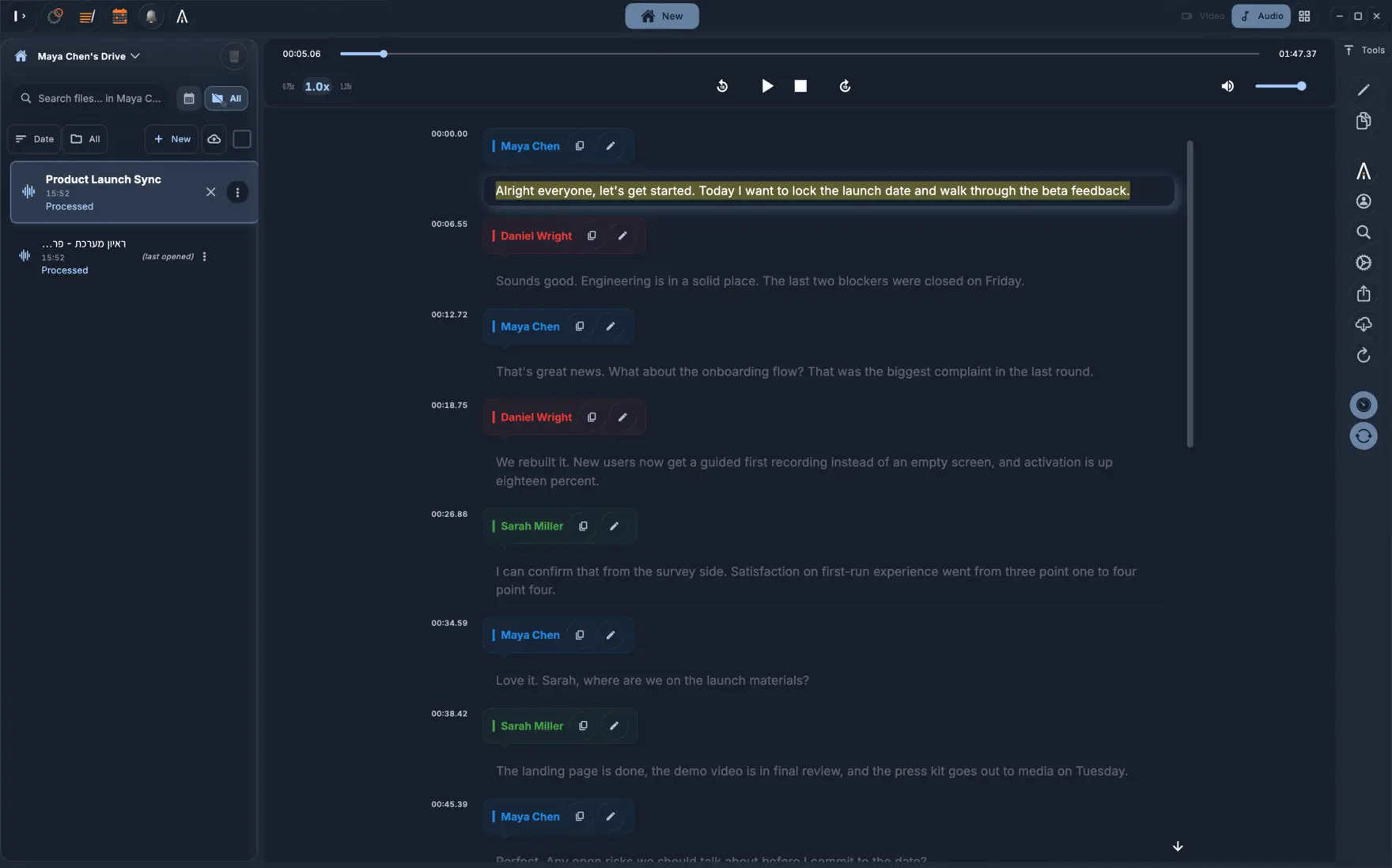
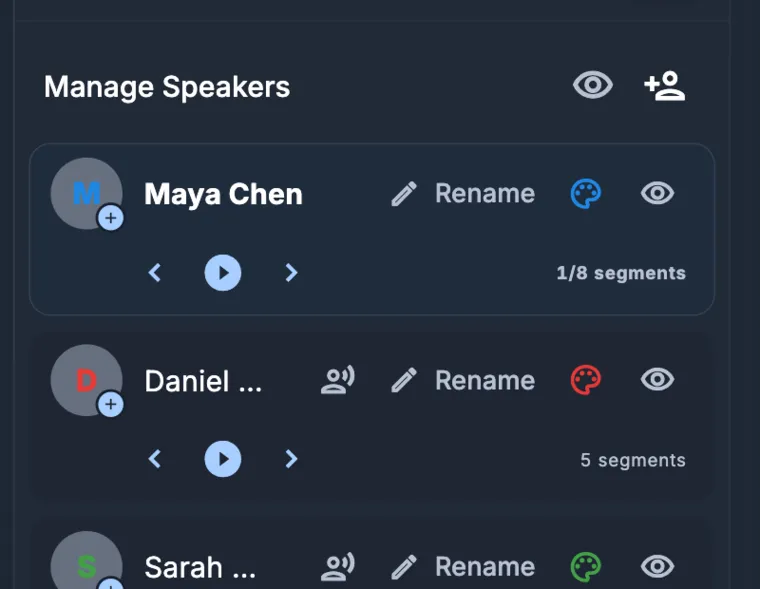
Those groups stay anonymous on purpose. The software can tell that two lines came from the same voice, but it has no way of knowing that the voice belongs to Noa from finance. You only have to type her name once for that group, and every line from that voice gets updated.
Because transcribing the words and sorting the voices happen separately, one can fail while the other succeeds. You might get a word-for-word transcript that still puts a sentence in the wrong person's mouth. When you review, check the speaker labels separately from the text.
Why does it sometimes label the wrong person?
People talking over each other is the biggest culprit. When two voices share the same moment of audio, a tool built to pick one speaker per segment has to guess. Quick reactions like "yes," "right," or "okay" cause trouble for a different reason. Half a second of sound does not give the software much to work with, so those short words often get glued onto the previous speaker's turn.
Voices that sound alike are also tough to split. If two colleagues of the same age and accent share a single laptop mic, even a careful human listener might mix them up. Recording a phone call in mono makes things harder still, since both voices come through on one channel after being compressed by the phone line.
Room acoustics play a role as well. Echo smears the sound of a voice, and someone who leans back from the mic can suddenly sound like a new participant. Over a long session, people also get tired, get excited, or clear their throats. Any of these shifts can trick the software into splitting one person into two groups, or lumping two people into one.
How do you record so that speakers separate cleanly?
Make sure each person has a clear line to a microphone. Setting a single device in the middle of a table is convenient, but it gives you the weakest separation. You will get much clearer voice groups if you put a mic or a phone near each speaker, or have remote participants wear headsets. For a two-person interview, put the recorder between both people, a little closer to whoever speaks more quietly.
Ask participants to take turns speaking. Agreeing at the start of a meeting to let each person finish a sentence before the next one starts is the easiest way to improve accuracy. People naturally talk over each other in a lively discussion, so some overlap will still happen. Even a small reduction saves time during review.
Have everyone introduce themselves at the start by saying their name and a full sentence. You get a clean sample of every voice, plus an easy reference when you name the groups later. You can just play the first minute to hear who is who.
How do you name speakers and keep the names?
Open the transcript, play the first line of each group, and type in the speaker's real name. KolWrite lets you rename a speaker while you read, and that change carries over to every export, so your Word document and subtitle file match what is on screen. The initial speaker separation happens in the cloud, but a local speaker bank can remember individuals by name and match their voices right on your device. That way, you do not have to re-upload audio to recognize a voice you have already named.
Pick the naming style your readers need. Formal records usually call for full names and job titles, while first names work fine for internal notes. Stick to the same spelling and format across meetings so a quick search pulls up everything a person said.
If you cannot tell who a voice belongs to, use a placeholder like Guest or Caller and leave it at that. A generic label is much safer than putting the wrong person's name on a quote.
How do you check the labels quickly?
You do not have to read the whole transcript to check the labels. In the sections that matter, go to the spots where the speaker changes and play the first second after each switch. Mistakes tend to bunch up around overlapping speech, short replies, and right after a pause.
Check every direct quote and every commitment. If the summary says Omar promised to send a file, play that exact line. A wrong label on a casual remark does no harm, but putting the wrong name on a promise, a number, or a complaint changes the record of what happened.
When a single line has the wrong name, fix just that line. When the software splits one person into two speaker groups, give both groups the exact same name to merge them. Like the text of an automated transcript, speaker labels have mistakes and need a human look.
When do speaker labels matter most?
Labels matter whenever you need to know who said what: meeting minutes, interviews, customer calls, hearings, and research sessions. For a recording of one person, like a lecture or a voice memo, you rarely need them and a plain block of text works fine.
You also want accurate labels before translating a transcript or making subtitles. Speaker names in a subtitle file help viewers follow along when the person talking is off-camera. Get the names right first, then export.
Common questions
What is speaker diarization?
It is the technical term for splitting an audio recording into segments by voice so you can see who spoke when. The software marks each voice with a generic label, and you swap those out for real names.
Can a transcript separate two people who talk at the same time?
Not reliably. When two people talk at once, both voices sit in the same piece of audio, and the software usually gives the whole line to one speaker. You should always check overlapping sections by ear.
How many speakers can be identified in one recording?
There is no hard limit. That said, sorting voices gets tougher as you add more people, when participants sound alike, or when the room is noisy. A small group where everyone has their own mic will come out the cleanest.
Does every model in KolWrite separate speakers?
No, some of the faster models skip speaker separation. If you need speaker labels, check the model description in the app and pick one that includes speaker separation.
Do I need to rename the speakers in every recording?
For a one-time recording, yes. If you record the same people often, the speaker bank can remember their names and match their voices right on your device, though it is still smart to double-check the match.