The short version
- Not every Google account can record in Meet. It depends on your account type, your plan, and your organization's settings.
- Google Drive saves the recordings, usually in the organizer's account, and emails the organizer once the file is ready.
- Download the recording from Drive and upload it to KolWrite. No bot ever joins your call.
- Online calls compress audio, so check speaker names and labels against the recording.
- Tell everyone before you start recording, and follow your organization's rules.
Who can record a Google Meet?
Only certain Google accounts and plans can record meetings, usually accounts managed by an organization. Whether the Record button shows up depends on your account type, who set up the call, and what your administrator allows. If you do not see the option, your browser is fine; your account lacks the permission.
Usually, the meeting organizer can start a recording, along with anyone from the same organization who has been given permission by the organizer. Everyone on the call gets a notice when recording starts. If someone else is hosting and you need a copy, ask them before the meeting starts. Recording people without telling them may break the law or company policy, so check with your organization or legal counsel if you are not sure.
Where does Google Meet save the recording?
After the call ends, Meet processes the video and puts it in a specific folder in the organizer's Google Drive. The organizer gets an email with a link as soon as the file is ready. That link is often added to the Google Calendar invite too, so invited guests can open it from there.
A short call takes a few minutes to process, while a long session takes longer. If you cannot find the video, check the organizer's Drive, search Drive for the meeting title, or check the calendar invite. Standard Google Drive permissions apply, so you might have to request access before you can open it.
How do you run the meeting so the recording is easy to transcribe?
Have people use headphones so speaker sound does not bleed back into their mics, and ask them to mute when they are not talking. Start the call by telling everyone you are recording. Have each person say their name the first time they speak, since hearing names out loud is the most reliable way to get accurate speaker labels.
Ask people to talk one at a time. Before you hang up, repeat important numbers, dates, and decisions. Having the host take the last minute to read out what was decided and who is doing what gives you a clean section of audio to check the transcript against. If someone shares their screen, read the document title out loud, because the transcript will not capture what is on screen.
How do you download the recording from Drive?
Open the file in Google Drive and click download in the file menu. Meet usually saves recordings as MP4 videos, with everyone's voices on the audio track. You can upload that video file as is. If the video is huge and you only care about the text, you can strip out the audio first, though you do not have to.
Rename the downloaded file clearly with the date and the meeting title. Do not count on the Google Drive copy staying there forever. Someone can move it, delete it, or change the sharing settings, and you cannot verify a transcript if you lose the original audio.
How do you upload the file to KolWrite?
Open KolWrite in your browser, on a Mac, or on your phone, add the downloaded file, and start transcribing. If you are on a phone, you can also send the file straight to KolWrite from the Files app or from Google Drive's share menu. KolWrite never puts a bot in your meeting and does not do live captions. You just use the recording after the meeting is over.
KolWrite handles Hebrew and Arabic, including conversations that bounce between Hebrew and English in the same transcript. Since mixing languages is normal in Israeli workplaces, pay extra attention to the spots where a speaker switches from one to the other.
What if the file will not open or the transcript looks wrong?
When a downloaded video will not play, download it a second time and make sure the download finishes before you upload it. If the recording in Drive is blank or missing, have the organizer check if the file is still processing or if someone deleted it. Also look for extra files if the recording was stopped and restarted during the session, since Meet may have split the meeting into several recordings.
When a transcript has a lot of blank spots, put on headphones and listen to the source file. Usually the culprits are echo, bad internet connections, or people sitting too far from their mics, and none of that can be fixed after the meeting is over. Next time, ask everyone to stay close to their microphones, and try doing a quick test recording before the real call.
What should you check in the transcript?
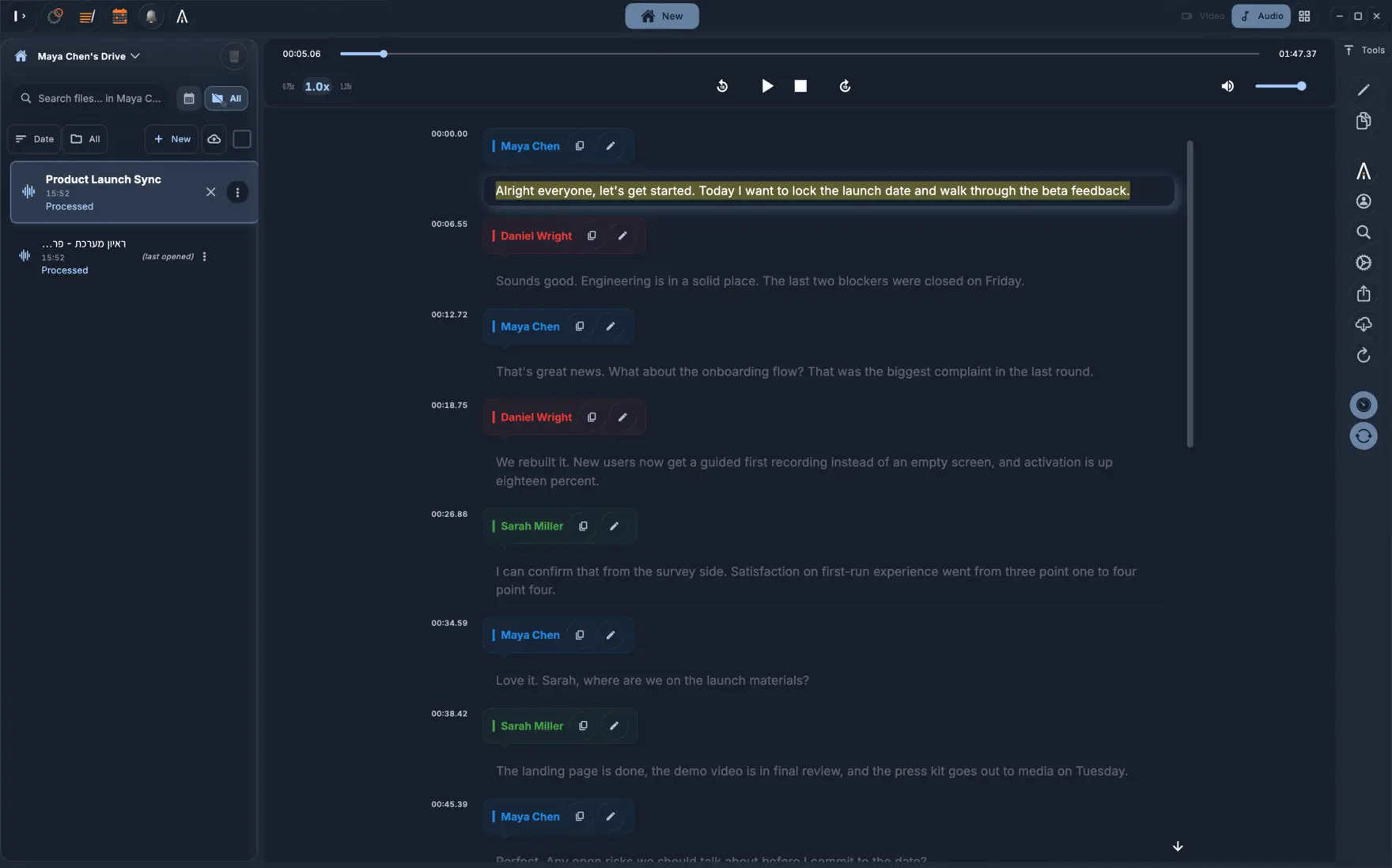
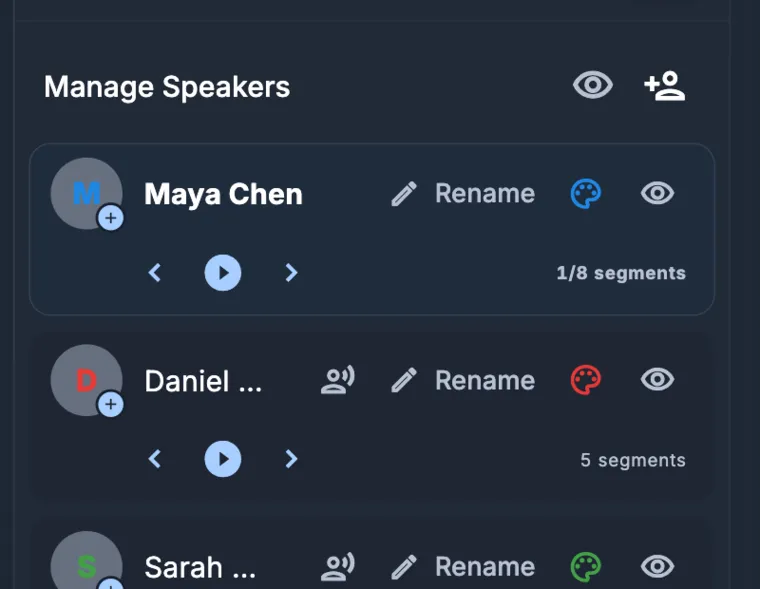
Check the speaker labels first. The transcript splits up different voices and puts a timestamp on every line, but an online meeting feeds everyone through a single audio track. Because of that, quick comments or people talking over each other can get pinned on the wrong speaker. Double-check that every decision and task is attributed to the person who actually said it.
After that, listen to the audio to verify names, numbers, dates, and technical terms. Automated tools make mistakes, especially with online calls where the sound is compressed, echoes happen, or the first word gets clipped because someone unmuted a second too late. If your company also turns on Meet's built-in transcription, you can compare the two texts, though the recording itself is still what counts.
What can you do with the finished transcript?
Save the transcript as a DOCX or PDF for meeting minutes, or grab a TXT file for emails and task managers. If you plan to share the video with subtitles, export SRT and VTT files instead. You can also generate a summary, translate the text between supported languages, or ask the AI chat to pull out decisions and action items. Always check any AI response against the timestamped transcript.
Only share these files with people who actually need to see them. Recordings and transcripts of meetings often hold private or confidential details, so treat them like any other sensitive company record and delete them once you no longer need them.
Common questions
Can KolWrite record my Google Meet for me?
No. KolWrite does not send a bot into your meeting or offer live captions. If your account allows it, record the session in Google Meet and upload the saved file afterward.
Why is there no Record option in my meeting?
Whether you can record depends on your Google account type, who set up the meeting, and the rules set by your administrator. Ask the meeting organizer or your IT admin.
Where do I find the recording after the meeting?
Look in Google Drive, usually in a Meet recordings folder inside the organizer's account. Google also emails a direct link to the organizer and often attaches it to the calendar event.
Does it work for Hebrew meetings?
Yes. KolWrite supports Hebrew and Arabic as primary languages, along with over 100 others, and it handles speech that mixes Hebrew and English.
Does the transcript need checking?
Yes. Automated transcripts can have mistakes, so always check names, numbers, and decisions against the recording.