The short version
- Send the KolWrite API a URL for an audio or video file, and you get back segments with word timestamps and speaker labels in JSON, plain text, or SRT.
- Word timestamps let you build captions, search, and click-to-play features. Speaker labels help you create meeting minutes, quotes, and per-person views.
- Go to console.kolwrite.com for API keys, usage, and docs. You will also find pricing and limits there rather than on this page.
- Test with the hardest audio you expect in your target languages. Measure how long it takes to reach a corrected transcript rather than only timing the raw output.
- Keep API keys on your server, be upfront with users about where their audio goes, and have a human check any text before publishing it.
What does a speech-to-text API give you?
With a speech-to-text API, your software can turn recordings into text without anyone having to open an app. You can use it to caption videos that users upload, index a call archive, make support conversations searchable, or let an AI agent listen. The provider's servers handle the recognition and send structured data back to your application.
If someone is working directly with a recording, the app makes the most sense. When your product brings in recordings at scale, or when software needs to read the transcript instead of a person, go with the API. KolWrite has both, and they run on the same underlying transcription.
What do you send, and what comes back?
You pass the KolWrite API the URL of an audio or video file. It sends back the transcript broken into segments, complete with word timestamps and speaker labels, in whichever format you ask for: JSON, plain text, or SRT. Oracle models can translate the text as well. When you sit down to write code, check the API console for the exact request and response schemas instead of relying on this overview.
Since the API takes an address, the service has to be able to open the file at that URL. Decide how your product will make files available, such as using a private link that expires instead of a public link that stays open forever.
Pick the output format that matches what you are doing with the transcript. Go with JSON when your software needs structured data. Ask for SRT if your next step is a subtitle file, or plain text if you only need to read it, search it, or pass it along to another model. Since models differ in features like speaker labels and translation, check the model descriptions in the console.
Where do you start?
Everything starts at console.kolwrite.com, where you manage API keys, check usage, and read the docs. If you use AI coding agents, the console also has links to an OpenAPI spec, an llms.txt file for the API, and a plain-text instruction file the agent should read before it writes any code.
You will find prices and limits in the console rather than on the KolWrite website, so check them there before you plan for high volume. Run a small test first, and keep your API key in your configuration files, never in your code.
If an AI assistant is writing the integration for you, feed it the instruction file and OpenAPI spec from the console. It will produce much better code working from the actual spec than guessing based on other APIs it has seen.
How do you use word timestamps?
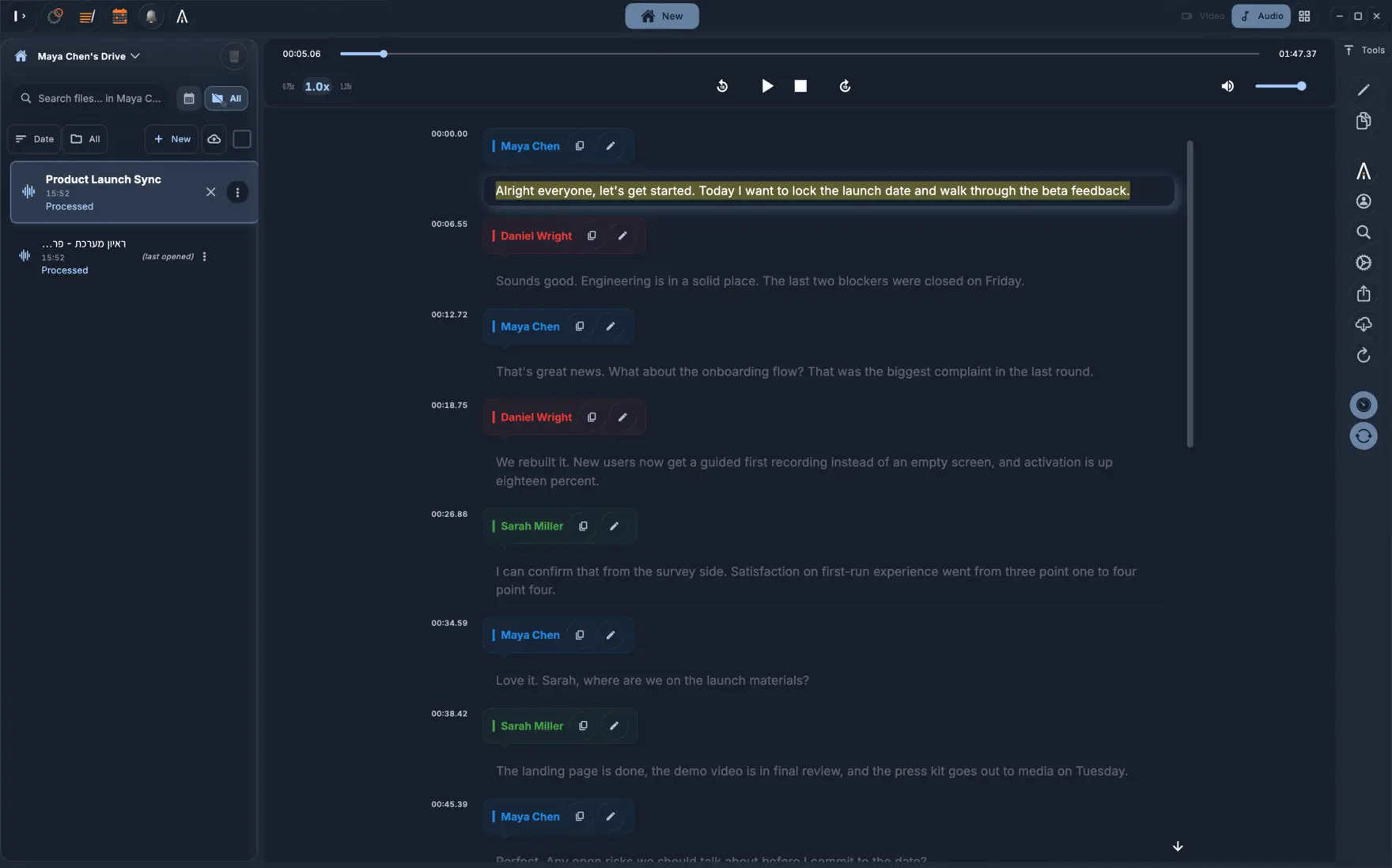
Word timestamps give you the exact start and end time for every word. That is what lets you sync captions to a speaker, highlight words as they play, jump straight from a search hit to that exact second in the audio, or clip a quote cleanly. Without them, you only get timestamps for whole segments, which is fine for reading a transcript but too rough for captions.
Set your own rules for line length and duration when grouping words into caption lines. Nobody in any language can comfortably read a caption that runs too long or flashes by too fast. If you just want a finished subtitle file, request SRT and look it over before publishing.
Timing can drift if you cut or re-encode the media after it has been transcribed. Always transcribe the exact file version your viewers will see, or keep track of the time offset.
How do you use speaker labels?
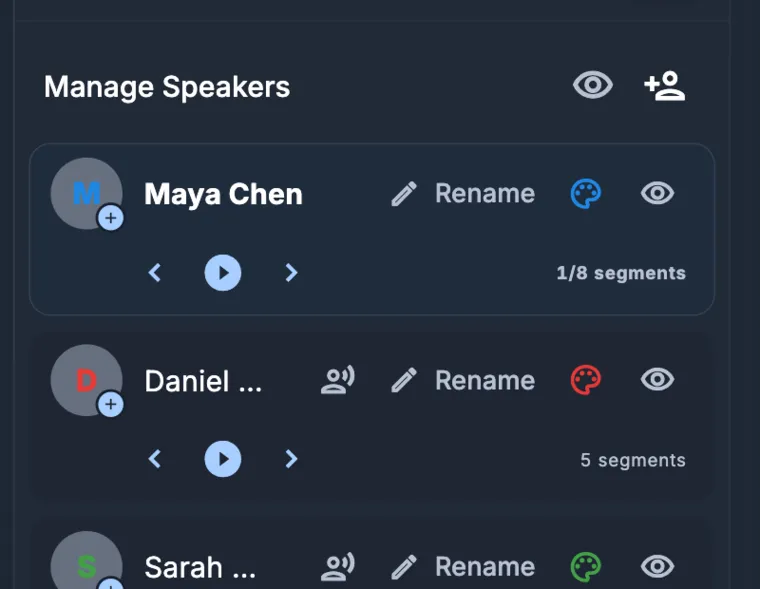
Speaker labels break a wall of text into a conversation. With them, you can sort meeting minutes by person, pull everything one participant said, or display a chat-style view. Since the labels come back anonymous (like speaker one and speaker two), your product needs a way to match them to real names, such as asking the user.
Think of speaker labels as a strong guess, not a certainty. People talking over each other, similar-sounding voices, or a whole conference room sharing one mic can all trip up the diarization. Build a way for users to fix speaker assignments before the text is saved as an official record.
How should you test before you ship?
Run your tests on the hardest audio your users will actually send you. Try a noisy room, a phone call, different accents, people talking over each other, and the exact languages and language mixes you support, including Hebrew and Arabic, where first-class support makes a real difference. Make sure those test files include the specific names and numbers that come up in your field.
Track what matters to the person waiting on the transcript: how long it takes from upload to a usable result, and how many edits they have to make before publishing. A single accuracy percentage hides all of that, which is why KolWrite does not publish one. Keep a small folder of test recordings and run them through again whenever you switch models or tweak a setting.
Plan for how your product will handle failures. Unreachable files, transcriptions that take longer than expected, and empty results happen in normal use. Give your users a clear message and an easy way to retry.
How do you handle security and privacy?
Your API keys belong on your server, never in a mobile app or a web page. Give each environment a separate key so a test can never touch production data, and rotate any key that may have leaked.
Audio recordings are some of the most sensitive data a product can handle, so tell your users where their audio goes. KolWrite details its practices on its security page: encrypted connections, AES-256 storage, servers in Germany, named AI providers, and no AI training on customer content. Make sure your privacy notice matches what your provider does, and delete both files and results once you no longer need them.
Put a human in the loop before anything gets published. Automated speech recognition will always make occasional mistakes, and if your app publishes raw output automatically, those mistakes go live too.
Common questions
What does the KolWrite API return?
It returns transcript segments with word-level timestamps and speaker labels. You can get the output as JSON, plain text, or SRT, and Oracle models can also translate it.
Can I send the audio file directly?
You pass the URL of an audio or video file to the API. See the documentation at console.kolwrite.com for the exact request format.
Where are the prices and limits?
They are listed inside the API console at console.kolwrite.com rather than on the main KolWrite site.
Can an AI coding agent build the integration?
Yes. The console includes plain-text instructions, an llms.txt file, and an OpenAPI spec meant for coding agents to read before they start writing code.
Does the API work for Hebrew and Arabic?
KolWrite supports over 100 languages, with first-class support for Hebrew and Arabic. Always test with your own audio samples and have someone review the transcript before publishing.