
A custom prompt
Write the names, terms or spellings the model should know, for example the people at a board meeting and the product they discussed.
Names and terms
Client names, product names, drug names and street names are where automatic transcripts slip.
Live demo
Runs in your browser.
In KolWrite you can list them before you transcribe, set a spelling rule that every new transcript follows, and fix whatever is left in one pass.
Cloud models can read a short note about the recording before they start.
Write the names, terms or spellings the model should know, for example the people at a board meeting and the product they discussed.
The custom prompt works with the cloud transcription models. The on-device model does not take one yet.
Some words are never written the way a model writes them: a surname, a brand, a term from your field.
Add a rule: written as "cool right", write instead "KolWrite". New transcripts, including live ones, follow it.
Run your rules on a transcript you already have. KolWrite tells you how many passages it changed.
A rule swaps the words and keeps their times, so subtitles and clickable lines stay where they were.
For the rest, fix it once and let KolWrite carry it through.
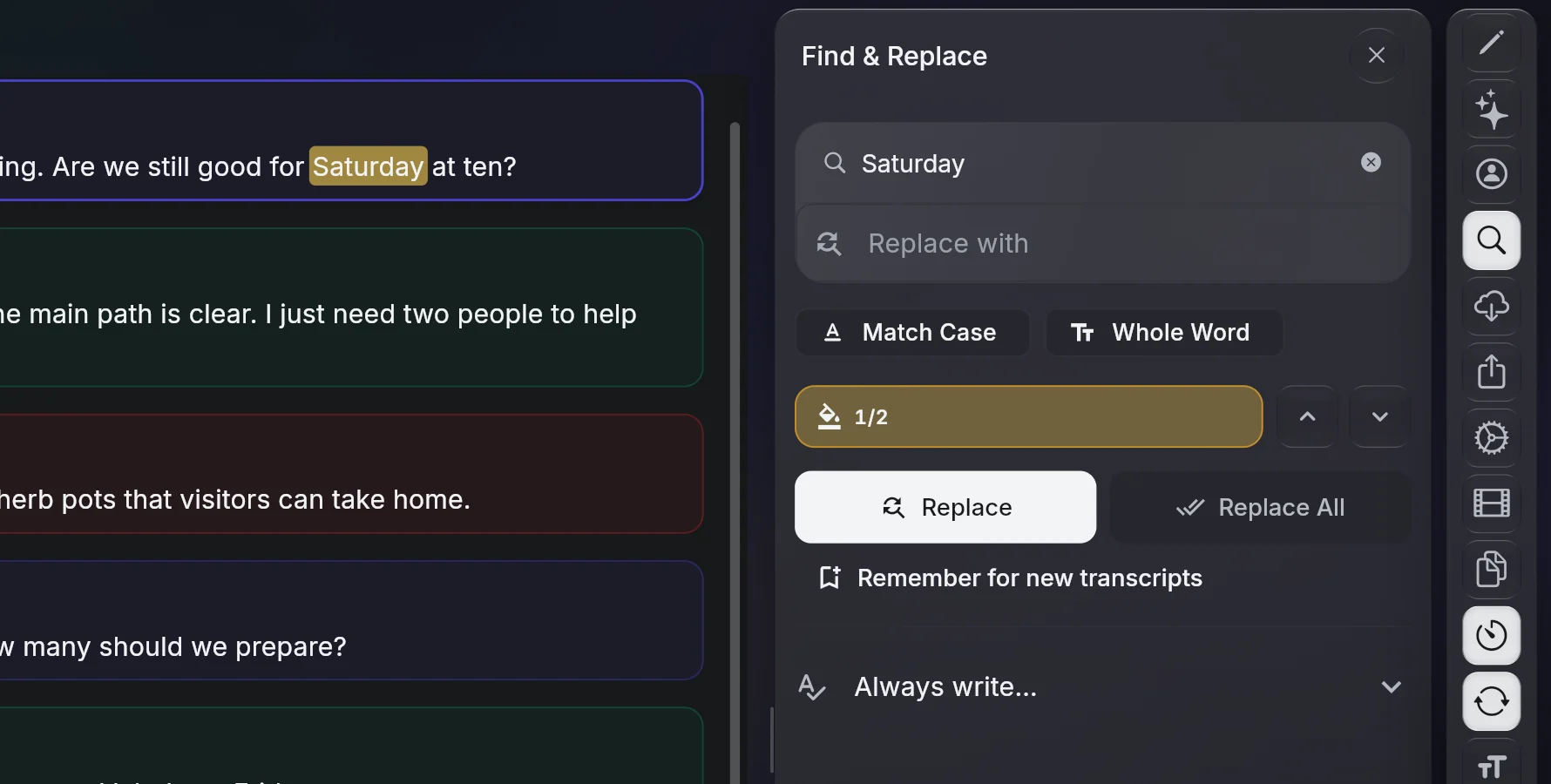
Find a word across the transcript and replace one match or all of them, with match case and whole word.
When you replace a word, keep the fix as a rule for next time.
Ask the AI to fix a name everywhere it appears, even where it was misspelled in different ways. This uses credits.
Before you transcribe with a cloud model, turn on the custom prompt and list the names and terms.
KolWrite transcribes the recording as usual.
Use find to jump to each name and play it to hear how it was said.
Replace the wrong spelling everywhere and choose Remember for new transcripts.
You can also run everything KolWrite does with a recording through our API. Send the address of an audio or video file from your own code or an AI coding agent, and you'll get back the transcript with word timings, speaker labels, and an SRT file if you request one.
The JSON output gives you the start and end time for every segment, plus individual word timings on models that support alignment. Turn on speaker separation to include a speaker label on each segment.
Pass output_format as srt if you want subtitles directly from the API. If you are using the Oracle models, you can also set translate_to to get the text back in another language.
The API console publishes plain-text instructions for an agent to read before writing code. This includes agent-instructions.md, along with llms.txt, which links to the full reference.
Yes, in two ways. Before transcribing with a cloud model, add a custom prompt with the names, terms or spellings to expect. After transcribing, spelling rules under Always write… put your spelling into every new transcript.
The model writes what it heard, using the spelling it has seen most often. Surnames, brands and terms from your field are often unusual, so list them in the custom prompt or add a spelling rule.
No. A rule replaces words and keeps their times, so subtitles and clickable lines stay in place.
Yes. Spelling rules are saved with your account and apply on every device you sign in to.
Yes. Live transcripts follow the spelling rules your account had when the recording started.
Not yet. Choose a cloud model to use a custom prompt. Spelling rules and find and replace work whichever model made the transcript.
Find it, replace it everywhere and choose Remember for new transcripts.