
Rename a speaker
Change Speaker 2 to Sarah once, and every line she said shows her name, in the app and in exports.
Speakers
KolWrite separates the voices in a recording and labels them Speaker 1, Speaker 2 and so on.
Live demo
Runs in your browser.
When a podcast guest's answer lands under the host, or one person is split into two labels, you fix it in a couple of taps and the change runs through the whole transcript.
Most speaker fixes are about who is who, not about the words.
Change Speaker 2 to Sarah once, and every line she said shows her name, in the app and in exports.
When one person was heard as two speakers, merge one label into the other. Only the label changes; the words and their times stay.
Merged the wrong voice? Separate it, and it gets its own label and colour back.
Speaker separation sometimes switches a moment too early or too late, especially when people interrupt each other.
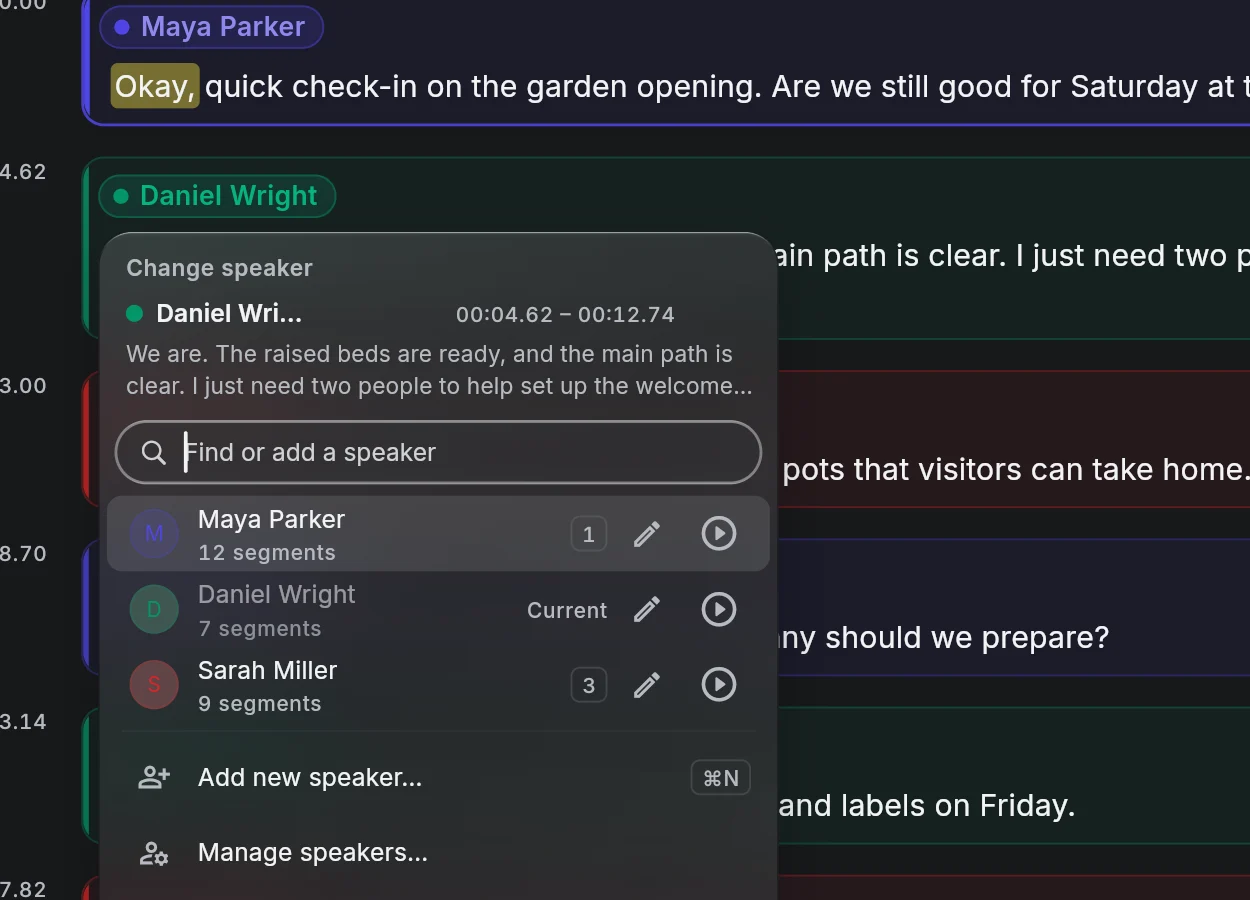
Pick another speaker for a line, or for several lines you selected together.
Put the cursor where the other person starts talking and choose them. The rest of the line moves to them and the timing stays.
Select a few words inside a line and give only those words to another speaker.
Teachers, interviewers and teams hear the same voices week after week.
Save the people you record often and pick their names from a list instead of typing them.
With Smart recognition turned on, KolWrite recognizes saved people by their voice in new recordings, on your device. It stays off until you turn it on.
Each speaker has a colour and can have a picture, taken from the video or chosen by you, so a long conversation is easy to follow.
Leave speaker separation on. If you know how many people talk, set the number, from 2 to 20.
Tap a speaker label, play a sample of that voice, and type the name or pick a saved person.
Move lines that landed under the wrong person, or split a line where the other person starts.
If one person still has two labels, merge them. Every step can be undone.
You can also run everything KolWrite does with a recording through our API. Send the address of an audio or video file from your own code or an AI coding agent, and you'll get back the transcript with word timings, speaker labels, and an SRT file if you request one.
The JSON output gives you the start and end time for every segment, plus individual word timings on models that support alignment. Turn on speaker separation to include a speaker label on each segment.
Pass output_format as srt if you want subtitles directly from the API. If you are using the Oracle models, you can also set translate_to to get the text back in another language.
The API console publishes plain-text instructions for an agent to read before writing code. This includes agent-instructions.md, along with llms.txt, which links to the full reference.
Tap the speaker label, such as Speaker 1, and type the person's name or pick someone you saved. The new name appears on every line that speaker said and in the exported document.
Change the speaker of that line, or select several lines and change them together. If only the end of a line belongs to the other person, put the cursor there and use Who speaks from here?
Yes. Use Merge into… on one label and choose the other. Only the label changes: the words and their times stay as they were, and the merge can be undone.
Yes, on Mac, Windows and Linux. Alt (Option on a Mac) with a number from 1 to 9 gives the current line to that speaker.
If you turn on Smart recognition, it matches voices to the people you saved, on your device, and in videos it can match faces too. It is off by default and is not available on Linux.
You can tell KolWrite to expect between 2 and 20 speakers, or let it work the number out. You can add a speaker by hand at any time.
Open it, tap Speaker 1 and type the name.