
Drag the edges
Pull the start or end of a line to where the voice starts and stops. The sound wave shows you where that is.
Timing
KolWrite gives every line and every word a start and an end time.
Live demo
Runs in your browser.
When a subtitle comes in a beat early, you drag it, nudge it or split it, with the sound wave right under it so you can see where the voice begins.
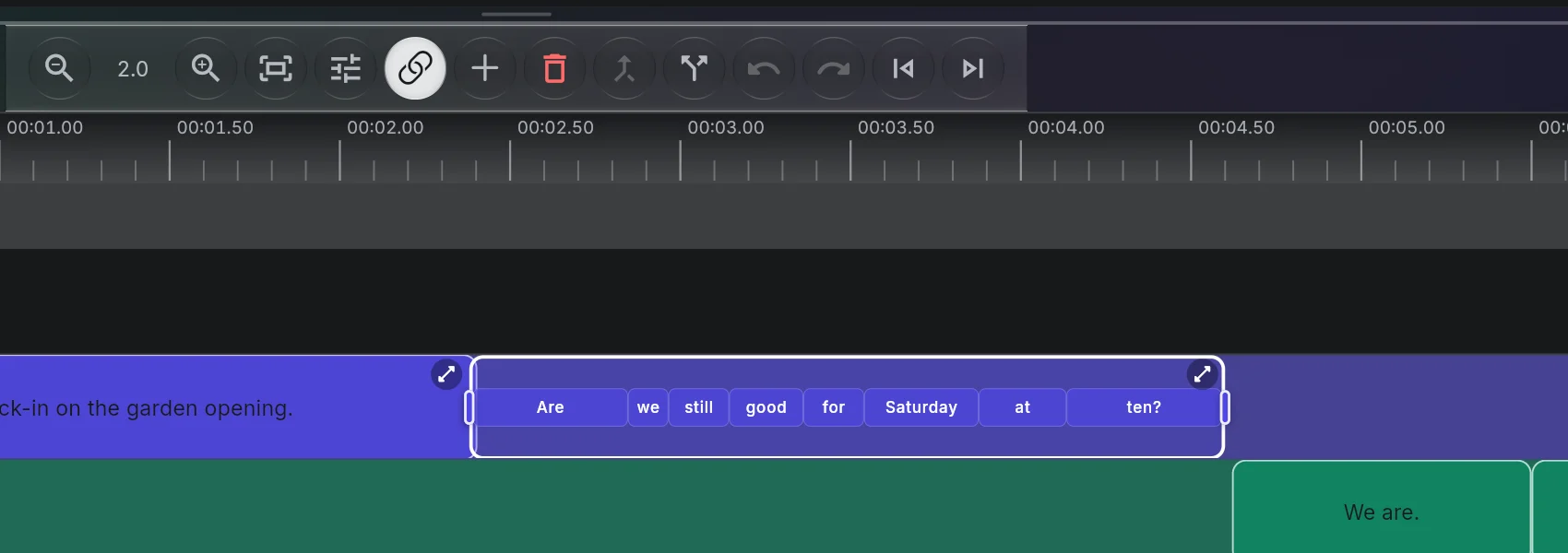
Switch the transcript to the advanced editor and each line becomes a block you can see and move.
Pull the start or end of a line to where the voice starts and stops. The sound wave shows you where that is.
Select a line and move it by 0.01 or 0.1 seconds at a time for the last bit of precision.
Select a group of lines and move them together, for example a scene whose subtitles all run half a second late.
A good subtitle is short, and it changes when the speaker changes.
Split a line at a word or at the playhead, so each subtitle stays easy to read.
Join lines that belong together into one.
Set the start and end of a single word, for captions that light up word by word.
The times you set stay with the transcript wherever it goes next.
Export SRT or VTT with your corrected times.
Burn styled captions into the video on your own device.
Each drag, nudge, split or merge is one step you can undo.
Switch the transcript to the timeline view and zoom in until you can see single words.
Use the previous and next buttons to move through the lines and play each one.
Drag, nudge or split until the line starts and ends with the voice. Turn on the magnet to snap lines to their neighbours.
Export SRT or VTT, or burn the captions into the video.
You can also run everything KolWrite does with a recording through our API. Send the address of an audio or video file from your own code or an AI coding agent, and you'll get back the transcript with word timings, speaker labels, and an SRT file if you request one.
The JSON output gives you the start and end time for every segment, plus individual word timings on models that support alignment. Turn on speaker separation to include a speaker label on each segment.
Pass output_format as srt if you want subtitles directly from the API. If you are using the Oracle models, you can also set translate_to to get the text back in another language.
The API console publishes plain-text instructions for an agent to read before writing code. This includes agent-instructions.md, along with llms.txt, which links to the full reference.
Example request. The key comes from an environment variable, and the console has the full reference.
curl -X POST https://app.kolwrite.com/transcribe \
  -H "x-api-key: $KOLWRITE_API_KEY" \
  -H "Content-Type: application/json" \
  -d '{"audio_url": "https://example.com/video.mp4", "model": "oracle", "language": "auto", "output_format": "srt"}'
# Returns {"jobId": "..."}. Poll GET https://app.kolwrite.com/transcribe/{jobId}
# until status is COMPLETED. The result is the file or the JSON you asked for.
Open the transcript in KolWrite's advanced editor. If one line is off, drag its edges or nudge it by 0.01 or 0.1 seconds. If a whole stretch runs early or late, select those lines and move them together. Then export the subtitle file again.
Yes. Turn on multi-select, select the lines and drag them together on the timeline. There is no separate offset box: you move the selection.
Yes. In the advanced editor each word has its own start and end that you can set. Word-by-word captions follow these times.
No. Words you do not touch keep their times, and a replaced word keeps the time of the word it replaced.
Yes. Bring the SRT or VTT file into the video editor, adjust the captions on the timeline and export again.
SRT and VTT from any transcript. The video editor also writes SCC, EBU STL and TTML for broadcast delivery.
Open the advanced editor, find the line and drag it until it sits with the voice.