
Fix a word
Type the correction in the line. The caption changes with it and keeps its time.
Subtitle editor
In KolWrite every subtitle is a line of the transcript with its own time, so correcting a caption is the same as correcting the text.
Live demo
Runs in your browser.
When it reads right, export a subtitle file or burn the captions into the video.
Watch the video, read the captions, fix what is wrong.
Type the correction in the line. The caption changes with it and keeps its time.
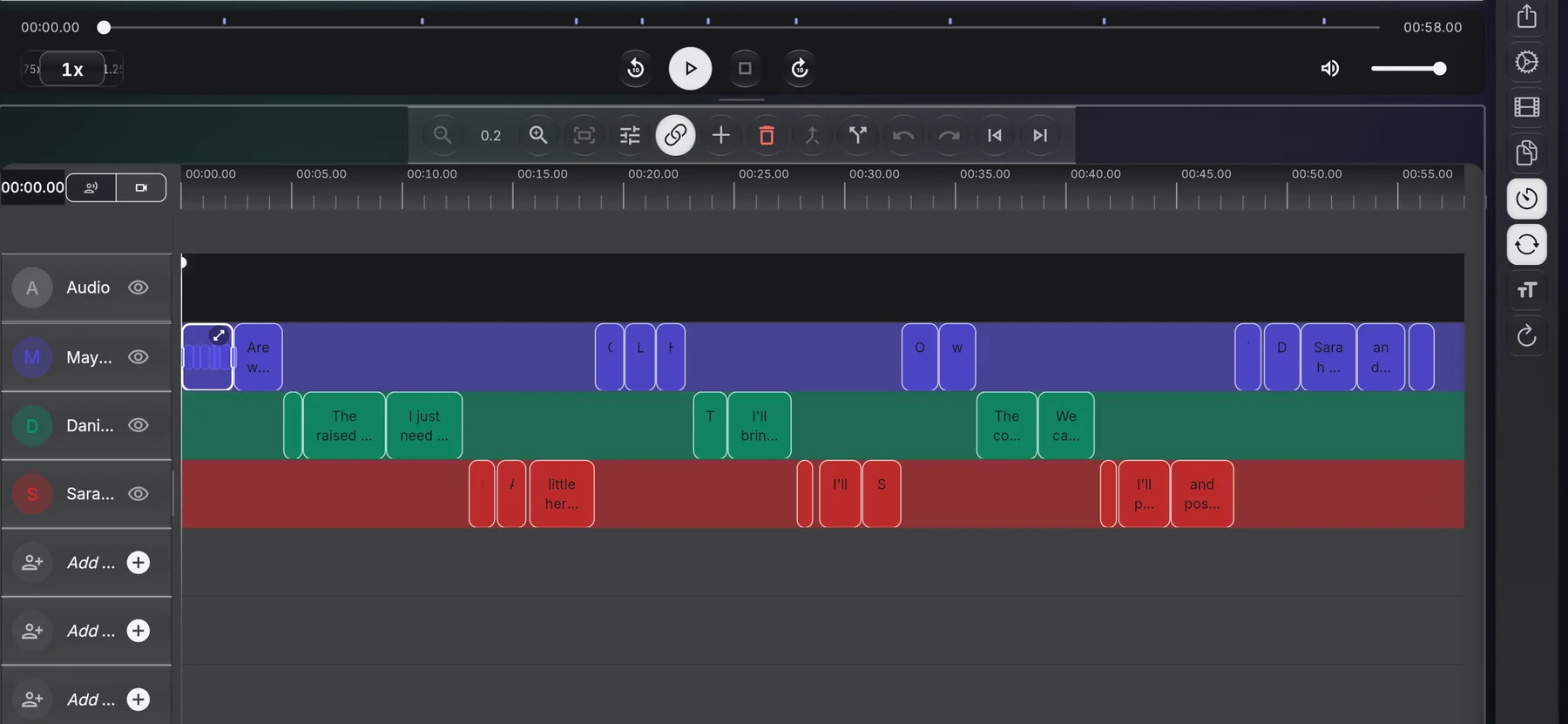
Drag, nudge, split and merge lines on the timeline until each caption sits with the voice.
Watch any recording with its captions on screen before you export.
Subtitles from a client, a broadcaster or another tool can be corrected here too.
Bring an existing subtitle file into the video editor and edit it on the timeline.
Make subtitles in another language from the same recording. This uses credits.
Hebrew and Arabic subtitles read right to left, in the file and on the video.
Choose the file the platform asks for, or put the captions into the picture.
SRT and VTT for most video platforms and players; SCC, EBU STL and TTML from the video editor for broadcast.
Burn styled captions into the video on your phone or computer, with no logo. On the web, the cloud renders the video for credits.
Captions can light up word by word as people speak, for Reels, TikTok and Shorts.
Transcribe a video, or open one together with a subtitle file you already have.
Play it with the captions on and stop at each line that is wrong.
Fix the words and the timing in place.
Export the subtitle file, or burn the captions into a new copy of the video.
You can also run everything KolWrite does with a recording through our API. Send the address of an audio or video file from your own code or an AI coding agent, and you'll get back the transcript with word timings, speaker labels, and an SRT file if you request one.
The JSON output gives you the start and end time for every segment, plus individual word timings on models that support alignment. Turn on speaker separation to include a speaker label on each segment.
Pass output_format as srt if you want subtitles directly from the API. If you are using the Oracle models, you can also set translate_to to get the text back in another language.
The API console publishes plain-text instructions for an agent to read before writing code. This includes agent-instructions.md, along with llms.txt, which links to the full reference.
Example request. The key comes from an environment variable, and the console has the full reference.
curl -X POST https://app.kolwrite.com/transcribe \
  -H "x-api-key: $KOLWRITE_API_KEY" \
  -H "Content-Type: application/json" \
  -d '{"audio_url": "https://example.com/video.mp4", "model": "oracle", "language": "auto", "output_format": "srt"}'
# Returns {"jobId": "..."}. Poll GET https://app.kolwrite.com/transcribe/{jobId}
# until status is COMPLETED. The result is the file or the JSON you asked for.In KolWrite each subtitle is a line of the transcript with its own start and end. Fix the text in the line and the time on the timeline, then export SRT or VTT, or burn the captions into the video.
Yes. Import the SRT or VTT file into the video editor, edit the captions on the timeline and export again.
SRT and VTT from any transcript. The video editor also exports SCC (CEA-608), EBU STL and TTML.
Yes. On iPhone, iPad, Android, Mac, Windows and Linux the video is rendered on your device with no logo. On the web the cloud renders it and uses credits.
Yes. Right-to-left subtitles are written and shown in the right direction, in the file and on the video.
Yes. The advanced editor shows every line on a timeline with the sound wave, where you drag, nudge, split and merge lines.
Open the video in KolWrite, play it with captions on and fix what you see.