
Tap a line to play it
The recording jumps to that line and plays. The text highlights and scrolls as the audio goes on, so you keep your place.
Transcript editor
Tap any line and KolWrite plays it, so you hear what was really said and type the fix in place.
Live demo
Runs in your browser.
Names, speakers and timing are corrected in the same window, and every change can be undone.
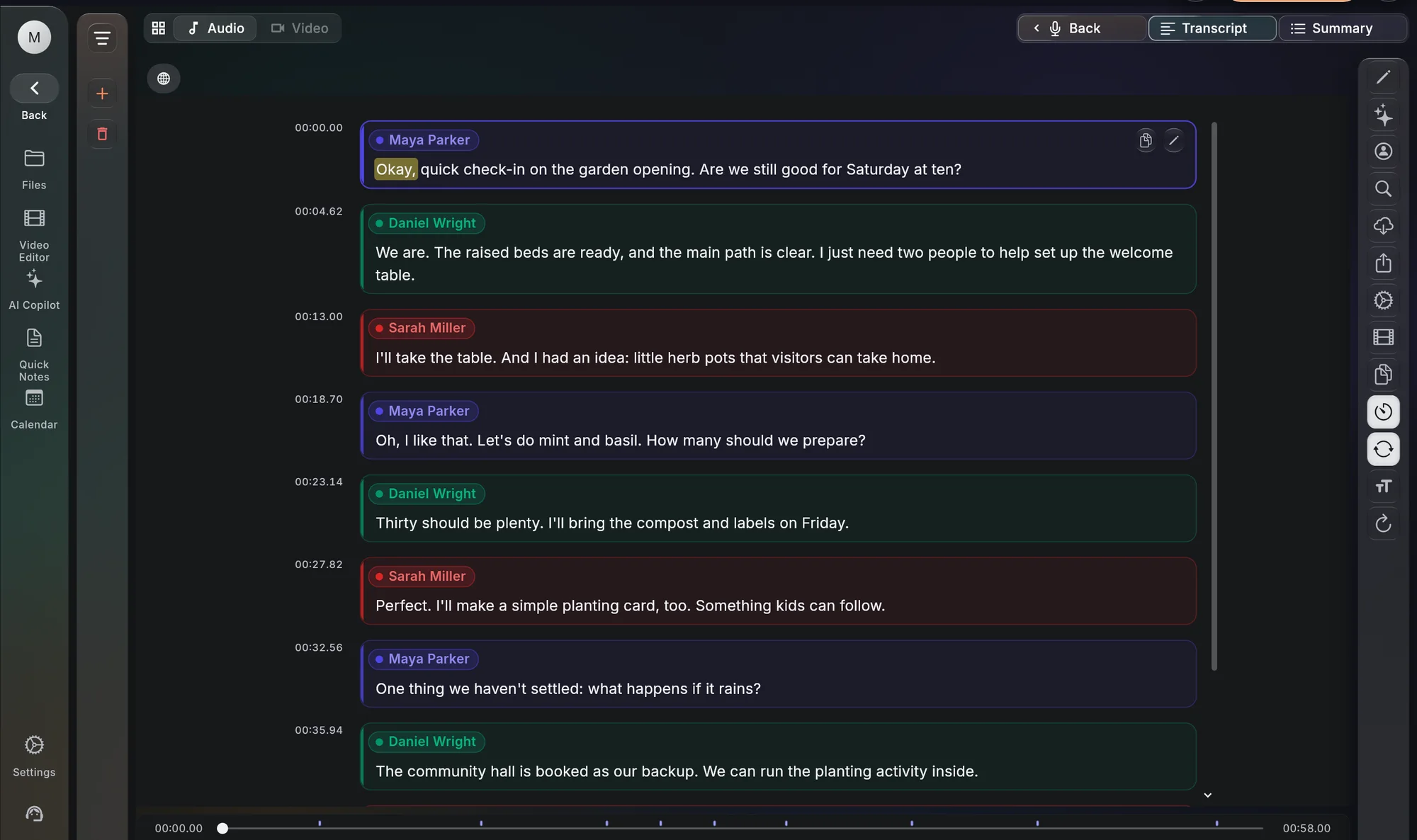
An automatic transcript gets most words right and a few wrong. The quickest way to find the wrong ones is to listen while you read.
The recording jumps to that line and plays. The text highlights and scrolls as the audio goes on, so you keep your place.
Fix a word the way you would in a document. Words you leave alone keep their timing, so subtitles you make later still line up.
If the transcript skipped a sentence, add a line at the moment it was said.
A transcript that goes to a client or onto the screen has to be right, and you need to know what changed.
Each edit is one step. Undo a merge you did not mean or a line you deleted, and redo it if you change your mind.
Go back to any earlier version of the transcript, for example the one from before an AI cleanup.
Change a word everywhere at once, with match case and whole word when you need them.
Reading a lecture and timing subtitles for a short film are different jobs, so the editor has a simple view and an advanced one.
The transcript as text, grouped by speaker. Good for reading, quoting and quick fixes on a phone.
A timeline under the text with the sound wave and the video frames, for work on exact start and end times.
Put the tools you use most on the toolbar, and choose the text size and whether timestamps show.
Open a recording you transcribed in KolWrite. The text and the player open together.
Press play or tap a line. Slow the playback down when someone speaks fast.
Correct words, names and speakers where they are. Undo anything that went wrong.
Export Word, PDF, SRT or another format, or share a link. Exports use your corrected text.
You can also run everything KolWrite does with a recording through our API. Send the address of an audio or video file from your own code or an AI coding agent, and you'll get back the transcript with word timings, speaker labels, and an SRT file if you request one.
The JSON output gives you the start and end time for every segment, plus individual word timings on models that support alignment. Turn on speaker separation to include a speaker label on each segment.
Pass output_format as srt if you want subtitles directly from the API. If you are using the Oracle models, you can also set translate_to to get the text back in another language.
The API console publishes plain-text instructions for an agent to read before writing code. This includes agent-instructions.md, along with llms.txt, which links to the full reference.
Open the transcript in KolWrite and tap the line you want to check. The recording plays from that line and you type the correction into the text. The text highlights as the audio plays, so you read and listen at the same pace.
No. Words you leave alone keep their times, and a corrected word keeps the time of the word it replaced. If the timing of a line is wrong, you can fix it on the timeline.
Yes. Every edit is one step you can undo and redo, and version history takes you back to an earlier version of the whole transcript.
You can ask the AI to tidy the text, rewrite a passage or fix a name across the transcript. This uses credits. Read what it changed before you use it, and undo it if it is not what you wanted.
Yes. It is in KolWrite on iPhone, iPad, Android, Mac, Windows, Linux and the web. The timeline view is easier to use on a bigger screen.
Yes. Bring the SRT or VTT file into the video editor, correct it on the timeline and export it again.
Tap the first line you are unsure about, listen, and type the fix.