The short version
- An audio format has two parts: a container and a compression method. The file extension only shows part of what is inside.
- Nearly any standard format works well for speech, provided the recording is clear and you only save it once.
- Re-saving a lossy file strips away a little more detail each time. Always start from the original file.
- Video files like MP4 and MOV can be uploaded directly. You usually do not need to strip out the audio first.
- Hang on to the original recording even after your transcript is finished.
What is an audio format?
A file extension covers two things. One is the codec, which is the method used to shrink the sound into less data. The other is the container, a wrapper that holds the audio along with any video and metadata like the title and duration. MP3 acts as both codec and container. M4A and MP4 are containers, and they usually hold audio compressed with the AAC codec.
That is why two files with the same extension can act differently, and why changing a file's name does not convert it. True conversion decodes the audio and encodes it all over again. Skip that step unless you have no choice.
How do MP3, M4A, WAV, OPUS, and OGG differ?
WAV files usually hold uncompressed sound. They keep everything the microphone picked up, which makes them big, around ten megabytes per minute for CD-quality stereo. MP3 and M4A are lossy formats. They throw out sounds the human ear is least likely to notice, shrinking the file several times over. At the bitrates phones and recording apps use, speech still comes through clearly.
OPUS is a newer codec designed to handle speech and music at low data rates. You will find it in voice messages and calls, usually packed inside an OGG or OPUS file. OGG is a container that can hold older Vorbis audio or newer Opus audio. On an iPhone, Voice Memos records to M4A. Android apps vary by phone and developer, though many let you pick the format yourself.
When you transcribe, picking one of these over another rarely changes the text you get back. How far the mic was, how noisy the room was, and whether people talked over each other matter far more than the codec.
Can you transcribe a video file such as MP4 or MOV?
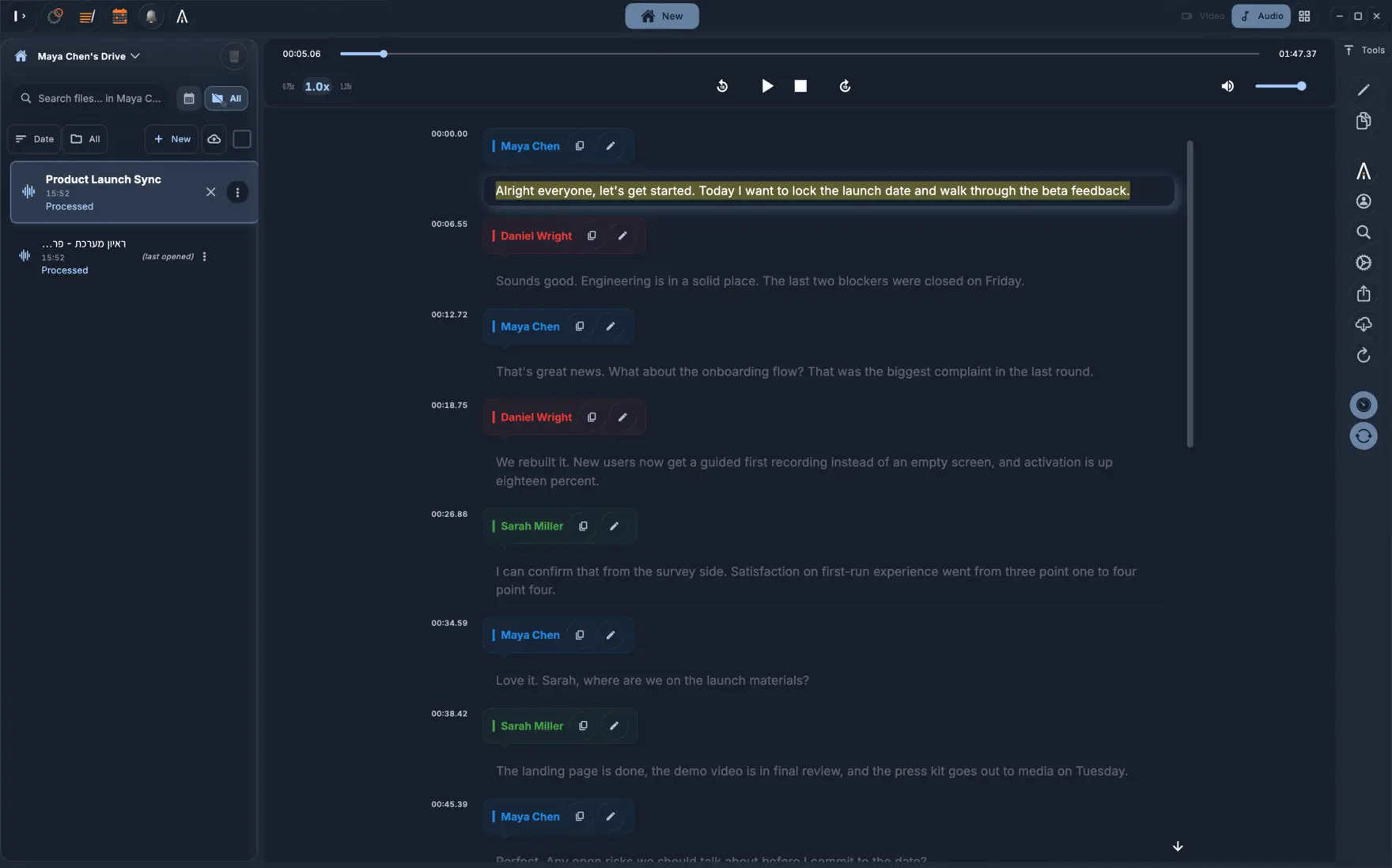
Yes. MP4 and MOV containers bundle video and audio tracks together, and the speech sits in the audio track. You can upload the video straight to KolWrite without pulling the audio out first. Uploading the video has another perk: later on, you can generate subtitles timed to the picture or burn captions right onto the video.
Big video files do take longer to upload. If a file is huge and you only care about the text, you can extract the audio first. Just do a plain export instead of re-encoding the sound at a very low quality.
Does compression hurt transcription?
Light compression will not hurt your transcript, and moderate compression on a clean recording is rarely a problem. Heavy compression is what causes trouble. Very low bitrates give voices a watery sound and blur the consonants, which are the exact sounds needed to tell one word from another. If you compress a file that was already compressed, like saving and re-exporting a voice message, the damage stacks up.
A good rule is to compress once at the very end, or not at all. If you need a smaller file to send someone, make a compressed copy and leave the original alone. Never send a shrunk-down copy for transcription when you still have the original.
What recording settings are enough for speech?
You do not need studio settings to record speech. Mono is fine when you are using a single microphone. A sample rate of 16 kilohertz or above captures voice cleanly, so the 44.1 or 48 kilohertz default in most apps is plenty. If your app has a quality setting, pick standard or high. Stay away from low-quality or compact voice modes that trade away clarity for smaller files.
Switch off effects that change the sound while you record, like heavy noise reduction or automatic gain that rides the volume up and down. Those might make things easier on a live listener, but they strip out details that transcription needs.
Which file should you keep?
Save the original audio file and put the date and subject in the file name. Think of the transcript as a working copy, because automated text can have mistakes. If a sentence looks questionable, the recording is the only way to be sure what was said. Storage is cheap compared to losing the record of an important conversation.
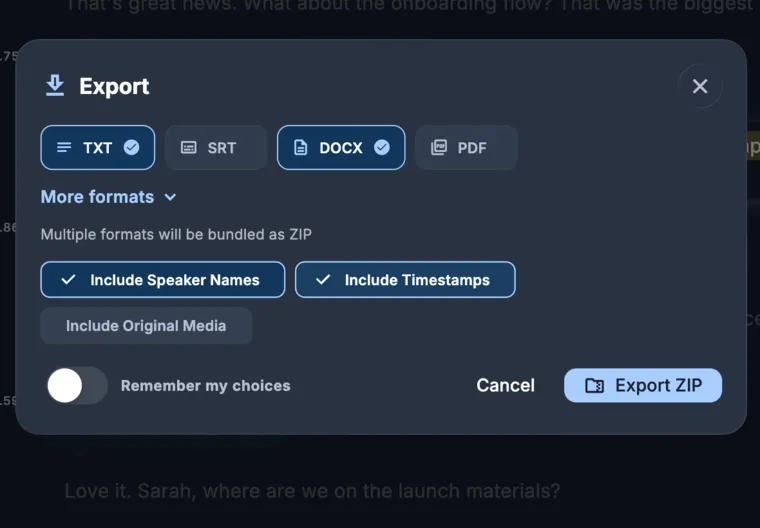
If a file will not upload or open, use a trusted tool to convert a copy to M4A, MP3, or WAV, and leave the original untouched. After you look over the transcript, you can export it as TXT, DOCX, PDF, or SRT, depending on how you plan to use it.
Common questions
Is there a required format for transcription?
No. Stick with your recorder's default format, do not edit the file, and put your effort into getting a clean recording. WAV, M4A, and MP3 all handle speech well.
Is WAV more accurate than MP3?
WAV keeps more detail, but for speech recorded at a normal bitrate, that difference is tiny compared to microphone distance and background noise.
Can I upload a video instead of extracting the audio?
Yes. Just upload the MP4 or MOV file as it is. The transcript is pulled from the video's audio track.
Can I transcribe a WhatsApp voice message?
Yes. On both iPhone and Android, you can share the voice message straight from WhatsApp to KolWrite. Those messages usually use the OPUS codec, and sharing moves the file over for you.
Should I convert my file before uploading?
Only if the file refuses to open. Converting a lossy file can drop its quality, so upload the original whenever you can.