The short version
- System audio recording grabs the sound directly from your computer, avoiding speakers and room echo.
- System audio only carries the other people on a call. To get the whole conversation, you need to record your microphone at the same time.
- Wear headphones. If you don't, your microphone will pick up the call coming out of the speakers and record it a second time.
- You have to grant your recording app permission in macOS, or your file may come out silent.
- Always run a quick test first. Recording for an hour only to find a silent file is the most common mistake, and the easiest one to avoid.
Why record the computer's sound instead of the room?
Holding a phone up to your laptop means the sound has to come out of the speakers, cross the room, and hit a microphone. You lose detail at every step. Recording the computer's internal audio skips the room altogether. It saves the exact signal going to the speakers, so people sound just as clear in the file as they did on the call.
That makes a big difference when you're just listening in or need a clean copy of an online lecture, a webinar, a recorded presentation, or a call where you mostly care about what the other participants say. It also keeps a second recording device off your desk, which is more discreet.
What does system audio recording include, and what does it miss?
System audio is anything the Mac plays, like voices from a video call, a browser tab, or a media player. Since your own voice never goes through the speakers, system audio won't pick it up. It also misses conversations in the room or on a separate phone.
To get a full call, you have to record your microphone alongside the computer's sound. KolWrite on a Mac can capture the computer's own sound to get both sides of a call. If your recorder only listens to one source, your transcript will be missing half the conversation.
Check what your app is actually picking up before a big call starts. Do a quick test: play a few seconds of a video, say a sentence out loud, and play the recording back. Both the video and your voice should come through clearly at roughly the same volume. If one side is much quieter, adjust your mic level and try again. A faint voice is hard to get a good transcript from.
Why is my Mac recording silent?
macOS blocks apps from grabbing screen or system audio until you allow it in your privacy settings. If you ignore or decline that prompt once, the app will often look like it's recording normally, but the finished file will be completely silent.
When a recording comes out silent, go to your Mac's privacy settings, find the list of apps allowed to record, and turn yours on. Restart the app if it asks you to. Because menu names change from one macOS version to another, just look for the privacy section instead of following an exact path. A ten-second test recording will tell you if it worked.
How do headphones and volume affect the recording?
Always wear headphones when recording a call. If you use speakers, your mic will pick up the other person's voice a split second after the system audio does. That leaves a stubborn echo on your vocal track.
Turning your Mac's speaker volume up or down usually only changes what you hear in your ears, not the recording itself. You still need to watch your microphone's input level, though. Sit about a hand's width from the mic, speak at a normal volume, and make sure the level meter moves without staying pinned at the top. If the audio clips constantly, you can't fix it afterward.
What habits make recordings reliable?
Silence your notifications before starting. Because mail, chat, and calendar chimes count as system sound, they get recorded right over the call. Switch on Do Not Disturb, or at least mute your noisiest apps.
Check that you have enough free disk space, and plug the Mac into power for long sessions. Keep the computer from going to sleep while you record. Hit record a few seconds before the audio starts and wait until after the last word to stop. You can easily trim silence later, while a missed opening sentence is gone for good.
What happens after you stop recording?
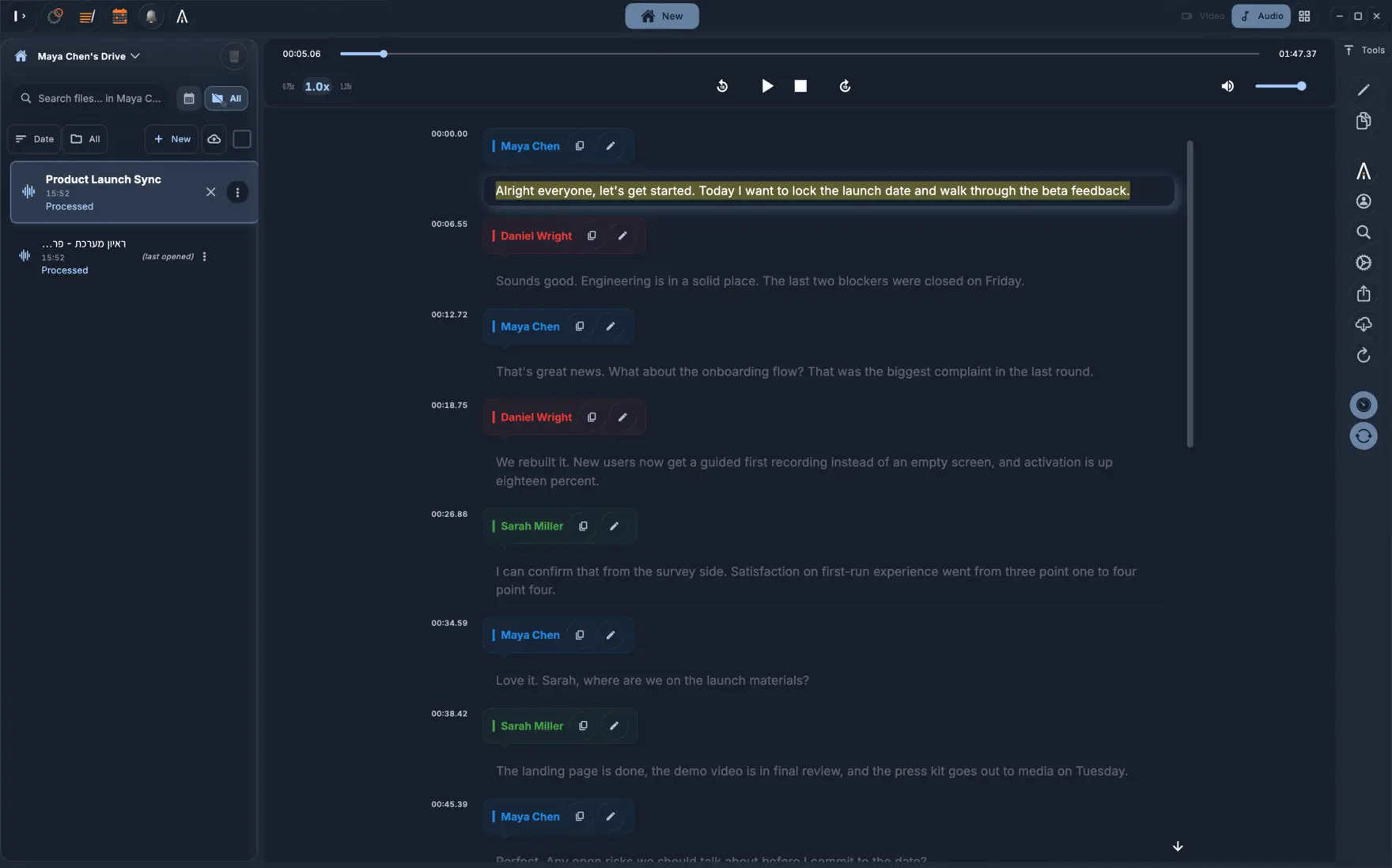
KolWrite turns the recording into a transcript with timestamps and speaker labels. Look over the speaker labels first. When two people are on the same audio channel, a quick interruption can get tagged to the wrong person. Automatic transcription can make mistakes, so listen back to the original audio to double-check names, numbers, and anything you plan to quote.
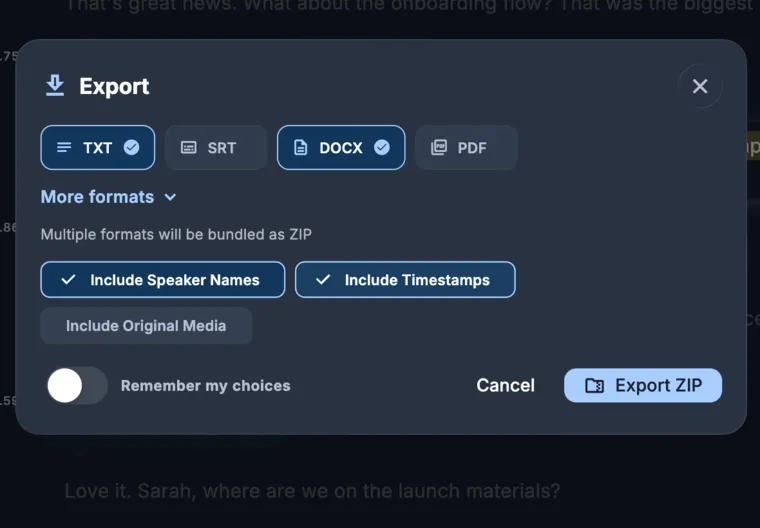
Tell everyone on the call that you're recording before you start. Laws on consent depend on the country and the situation, and some organizations have their own rules. If you aren't sure what applies, ask the organization or a lawyer. Once your text is ready, you can export it as a TXT, DOCX, PDF, or SRT file.
Common questions
Can a Mac record its own sound without extra hardware?
Yes, as long as the app has permission to record system sound. On a Mac, KolWrite captures the computer's audio directly, without a loopback cable or a second device.
Does it also record my microphone?
Not if you only record system sound. To get both sides of a call, you need to record your microphone and the computer's audio together.
Why is my file silent?
You are usually missing the recording permission. Turn the app on in your Mac's privacy settings and run a ten-second test.
Is it fine to record other people on a call?
Let them know before you start. Recording laws vary by country and context, so check with your organization or a lawyer if the call is sensitive.
Can I transcribe a recording made with another tool?
Yes. Just upload the audio or video file to KolWrite and check the transcript against the original recording.