The short version
- How far the microphone sits from the person speaking is the biggest factor. Closer is almost always better.
- Put your recorder on something soft in the middle of the group, or give people sitting further away their own device.
- Hard walls, glass, and big open rooms create an echo that software cannot fully clean up later.
- Record a thirty-second test clip and check it with headphones before the meeting starts.
- Tell everyone in the room that you are recording before you hit record.
What makes a meeting recording easy to transcribe?
Three things decide the result: how loud each voice is compared to the room, how many people speak at the same time, and whether the audio file gets from the microphone to your computer intact. You can control the first and third. For the second, you can only steer things by running the meeting well.
Treat the microphone as the ear of whoever will read the transcript later. If you play the file at normal speed and cannot follow the conversation, software will not be able to either. You want a recording where a colleague who missed the meeting could listen and understand every sentence.
Where should you put the microphone?
If three to six people are sitting around a table, set your phone or recorder in the middle, screen down, on top of a notebook or folded jacket. A bare table picks up vibrations every time someone sets down a cup or clicks a pen. Keep the mic away from laptop fans, air vents, and projectors.
Try to keep the mic within arm's reach of your quietest speaker. If someone is sitting further back, slide the recorder toward them or ask them to speak up a bit. When one person comes through loud and another is barely audible, the transcript will come out just as uneven.
One recorder in the middle of the table rarely works in a large room. Set a separate device in front of the main speakers, or plug in a small external mic on a short cord. Do not record from inside a pocket or bag, because the fabric rubs against the mic and muffles the voices.
How much does the room matter?
A lot more than most people think. Bare rooms with hard surfaces and glass walls bounce sound around, so every word hits the microphone twice. First it arrives straight from the speaker, and a split second later it bounces back off the wall. That is what causes a hollow conference-room echo.
Pick a smaller room with carpet, curtains, or bookshelves over a big empty space. Shut the doors and windows, switch off anything that hums, and put all phones on silent so notifications do not cut into a sentence. If you have a choice, a quiet meeting room beats a busy cafe every time.
Is it better to record on a phone or a laptop?
Both work, though a phone is often the better pick for an in-person meeting. It is small, easy to set on the table, and has a mic built for voices. Open your phone's built-in voice memo app or the KolWrite app, and keep the screen from locking if the app needs it.
Laptop microphones sit right by the keyboard, so if you type during the meeting, every keystroke goes onto the recording. If a laptop is your only option, take notes on paper or accept the typing noise in the background. For online meetings, use the recording button inside your call software instead of holding a phone up to your computer speakers.
Before you start, check your battery level and available storage. Audio files are small, but starting a long meeting on a phone that is almost full is an easy way to lose the recording halfway through.
What should you test before the meeting starts?
Put your device in the exact spot you plan to use and record a thirty-second clip. Talk at your normal volume, then walk to the far end of the table and say a few more sentences. Plug in headphones and listen back. You are checking four things: can you hear every voice clearly, is there a constant hum or hiss, does the sound distort when someone laughs, and did the file actually save.
If a voice is too quiet, move the mic closer. If you hear an echo, shut a door or move to a room with softer furnishings. Running this check takes a minute, and it saves you from a mistake almost everyone makes at least once, which is walking out of a meeting that never recorded at all.
What do you do with the recording afterwards, and who must agree?
Before you start, let everyone in the room know you are recording and tell them why. In many jurisdictions, it is legal to record a conversation you are taking part in, though the law depends on the country, the setting, and who is there. Many workplaces also have their own rules, so check with your organization or legal counsel if you are not sure. Letting people know also improves how they speak. They pause less and talk over each other less, which gives you a cleaner file.
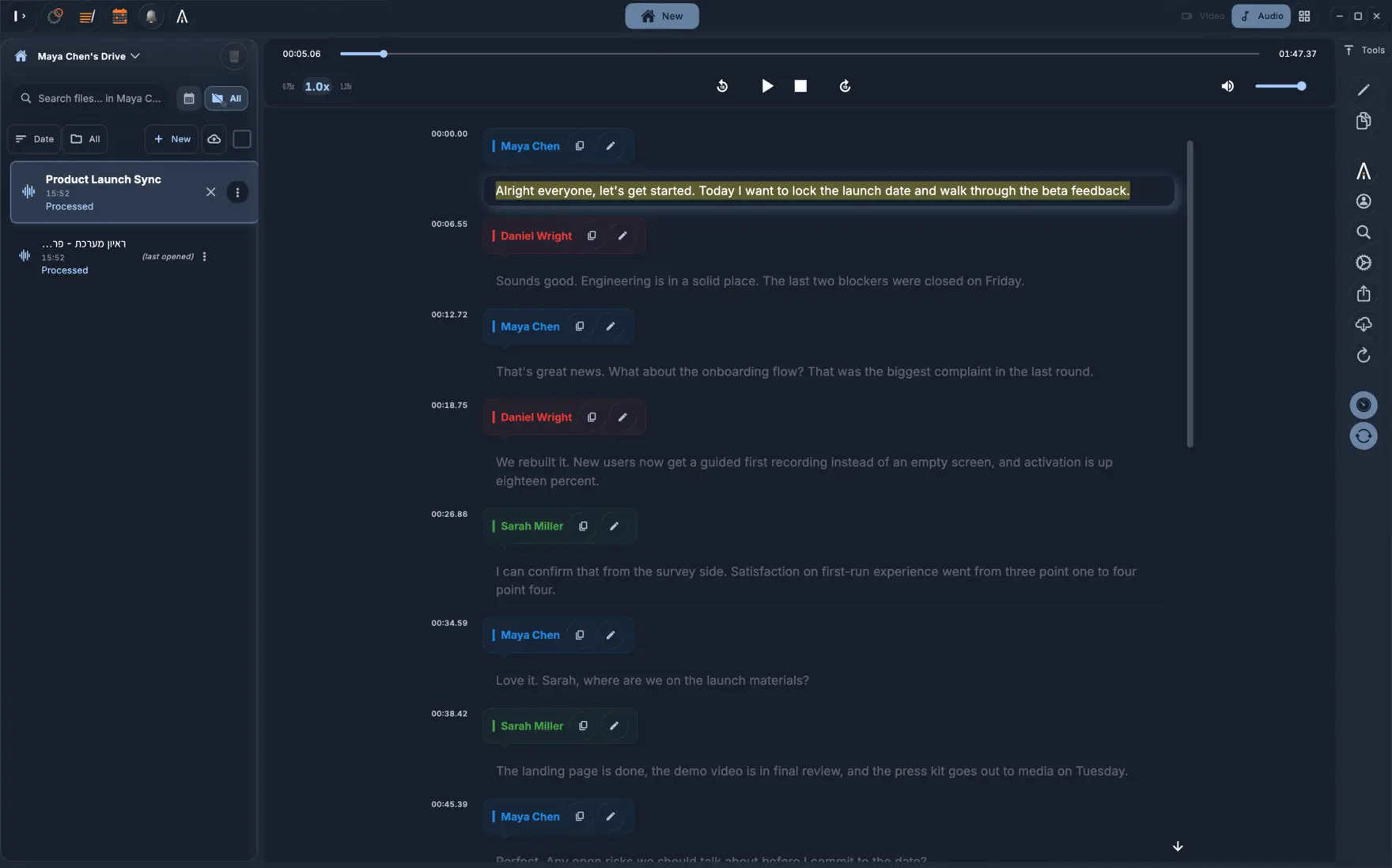
Once the meeting wraps up, save the original audio file with the date and topic in the file name. Upload it to KolWrite to get a transcript with speaker labels and timestamps, then listen back to double-check names and numbers before you send it around. Automated transcription can make mistakes, so treat the text as a working draft. KolWrite does not send a bot into your call. You record the audio yourself and upload the file.
Common questions
Can I record a meeting with just my phone?
Yes. Put it screen-down on a soft surface in the middle of the table, and record a thirty-second test before you start. In a large room, use multiple devices or an external microphone.
Do I need to tell people I am recording?
You should. Laws differ depending on the country and situation, and many workplaces have their own policies, so ask your organization or a lawyer if you are not sure. Letting people know is also good practice.
Which audio format should I use for a meeting?
Stick with whatever format your recording app uses by default. Standard files like M4A, MP3, and WAV all transcribe well. Keep the original file as is rather than exporting a new copy.
How do I get a transcript of a meeting I recorded?
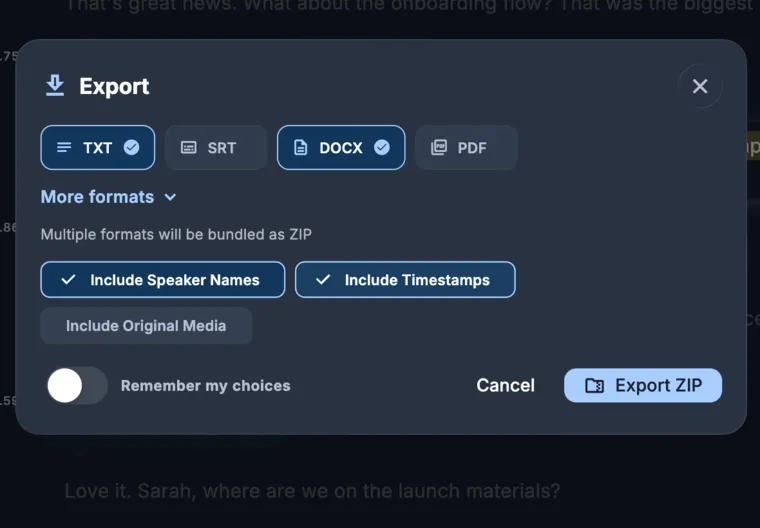
Upload your audio file to KolWrite. It will give you a transcript with timestamps and speaker labels, which you can read through, edit, and export as a TXT, DOCX, PDF, or SRT file.
Will background noise ruin the transcript?
Constant background noise leads to more transcription mistakes, and sudden loud sounds can drown out words completely. Keeping the room quiet while you record is much easier than trying to clean up the audio afterward.