The short version
- Import existing files or record straight from your Mac.
- On a Mac, KolWrite can record system audio, which is useful for calls and online sessions you attend.
- You do not need to convert video files first. The transcript is built right from the video's audio track.
- Listen to the audio while reading the text to double-check names, numbers, and quotes.
- Export the transcript as TXT, DOCX, PDF, or JSON, or as SRT and VTT subtitle files.
What can you transcribe on a Mac?
Almost any file with speech works: phone voice memos, saved meetings, lectures, interviews, podcast episodes, camera footage, and screen recordings. You can drop in either audio or video. It supports Hebrew, Arabic, and more than 100 other languages, and handles recordings that mix Hebrew and English.
You can also record directly in the Mac app. Pick the built-in mic if you are talking to someone in the room, or capture system audio to record something playing on your computer, like a video call or a webinar.
Should you use your Mac or your phone?
Pick whichever device you can put closer to the person speaking and keep still. A phone is small and easy to set on a meeting table without getting in the way. Use your Mac when the sound is coming from the computer itself, when the recording is long and you want to edit it in one go, or when you need to compare the transcript with other documents open next to it.
You don't have to pick one device for the whole job. Your account syncs across both, so a lot of people record on their phone and switch to their Mac to edit the text.
How do you add a file to transcribe?
Open KolWrite and bring your file in. You can drag it straight from Finder into the app, or use the upload option to pick it from a folder. If you have a batch of recordings, like weekly sessions from a course, you can add multiple files at once.
Name your files clearly with the date and subject before importing, since that filename carries over into the app. If a recording is on your phone, send it to your Mac with AirDrop or iCloud Drive, or upload it straight from the mobile app. Always keep the original file in a backed-up folder.
How do you record on a Mac?
If you are recording a conversation in the room, start recording in the app and put your Mac, or better yet an external microphone, close to the people speaking. A laptop's built-in mic sits right next to the keys, so it will pick up your typing. For an interview or a meeting, a small tabletop mic gives you clearer audio than the built-in one.
For audio playing on the computer, such as an online lecture or a video call, choose to record the computer's own sound. The first time you do this, macOS will prompt you for permission; until you grant it, the recording may be silent. Wear headphones during a call so the other person's voice does not echo back through your microphone. We cover this setup in detail in our guide to recording computer audio on a Mac.
How do you review the transcript on a larger screen?
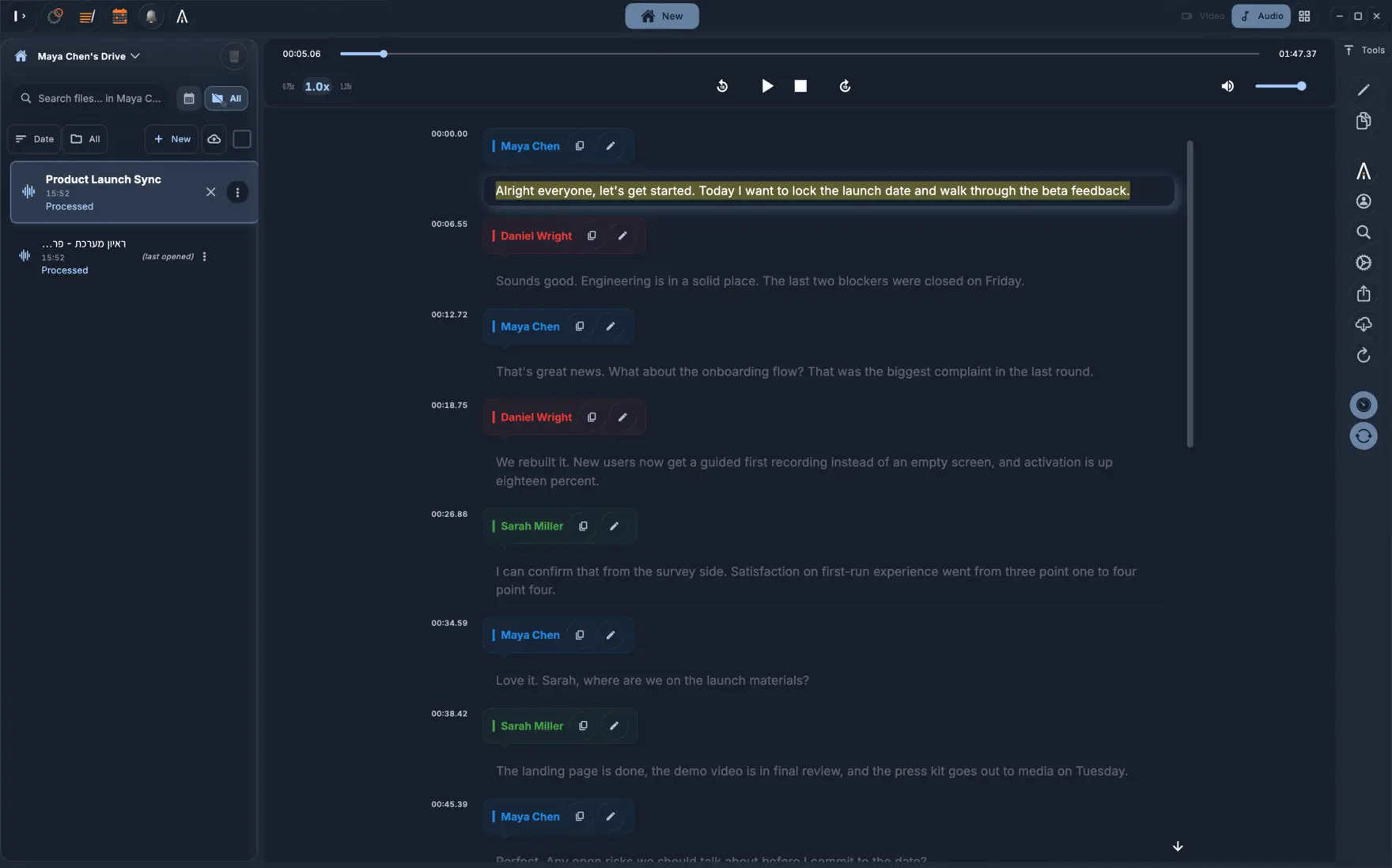
Hit play and read along with the audio. Every line has a timestamp, and clicking any sentence jumps the audio to that spot. Check the speaker labels first, since a wrong label changes who said what. Then look through for names, numbers, dates, and technical terms, and fix them right in the text.
Going through the text twice works well. First, listen at normal speed and fix mistakes as you hear them. Then use search to jump to specific names and hard terms so you can check every time they appear. Automatic transcription will miss things now and then, and working on a Mac makes it much less tedious to clean them up.
How do you export and share the result?
Pick the format that fits what you're doing next. Use DOCX if you want to keep editing in a word processor or turn the text into meeting minutes. Use PDF when you want a fixed layout to send around, or TXT for plain text you can paste anywhere. Developers can export JSON to get the raw structure with word-level timestamps. For video, export SRT or VTT subtitle files, or burn the captions straight into the video.
If your document is in Hebrew or Arabic, open the exported file to make sure the text runs right to left and the paragraphs line up the way they should. If your word processor flips the direction, changing the paragraph direction setting fixes it.
Which Mac workflows work well?
Students often record a lecture on their phone, move the file to their Mac, and go over the transcript next to their class notes. Journalists transcribe interviews, search the text for the quotes they need, and play back that part of the audio to check the context before publishing. Teams record online meetings straight on the computer and drop the finished transcript into the project folder.
Video editors on a Mac can bring the transcript into their timeline, or use the KolWrite panel inside Premiere Pro or DaVinci Resolve to handle captions without leaving their editor. Developers can call the same transcription engine through the REST API at console.kolwrite.com.
What habits keep a Mac workflow reliable?
Plug your Mac into power and set it not to sleep during long recordings. Make sure you have enough free disk space, and turn off notification sounds before you record system audio. Do a quick ten-second test recording before you start for real. Keep a backup of the original audio files until you have finished checking the transcript.
If you are recording other people, tell them beforehand. Recording laws depend on where you are and the situation, and many organizations have their own rules too. KolWrite doesn't join calls as a bot. You record or upload the file yourself, so you control what gets recorded.
Common questions
Is there a KolWrite app for Mac?
Yes. KolWrite has a dedicated Mac app, plus apps for iPhone, iPad, Android, Linux, Apple Watch, and the web.
Can I record a Zoom or Teams call on my Mac?
Yes. On a Mac, KolWrite can record your computer's system audio, so it captures both sides of the call. Let the other people on the call know before you start, since consent rules vary.
Can I drag a video file in?
Yes. You can use standard video formats like MP4 and MOV, and the transcript is created directly from the video's audio track.
How do I get a Word document?
Export the finished transcript as a DOCX file and open it in your word processor.
Why is my Mac recording silent?
macOS makes you grant permission before an app can record system audio. Turn this on in your Mac's Privacy & Security settings, then run a quick test.