The short version
- KolWrite Watch Recorder runs on its own, so you can leave your iPhone behind.
- One tap starts the recording, and it keeps going even after the screen turns off.
- You can record offline. The watch uploads the audio to your KolWrite account for cloud transcription once it has a connection.
- A watch microphone sits further from the mouth than a phone, so how you place it matters.
- The app does not offer live captioning, and automated transcripts still need a manual check for errors.
Why record on a watch?
Because it is already there. Using a phone means taking it out of a pocket or bag, unlocking the screen, and finding the right app. On a watch, you raise your wrist and tap once. For the moments people most often regret missing, such as a thought on a walk, a spoken instruction, or a point made at the end of a meeting, that difference determines whether the recording exists at all.
A watch is also less intrusive. Putting a phone on a table draws attention and makes some people self-conscious about what they say. Since a recorder on your wrist is easy to forget, it is only fair to tell people when you are recording.
How does recording on the watch work?
KolWrite Watch Recorder is a standalone app for Apple Watch on watchOS 10 or later. You do not need an iPhone app to use it. Once you tap record, the screen shows the elapsed time and an audio level meter, and you can pause or resume whenever you want. The recording keeps running if the screen dims or if you switch to another app. If a phone call comes in or your audio switches to another device, the app picks the recording back up once the interruption ends.
If the watch starts running out of storage, the app stops recording on its own and alerts you so the file is not quietly lost. You can also record before signing in. The watch holds onto the audio until it can be uploaded.
How do you get clear audio from a wrist microphone?
A watch has a tiny microphone, and because it sits on your wrist, it is usually further from the person speaking than a phone would be. Distance is the main thing that hurts audio quality, so pay attention to where you put your arm.
In a lecture, sit near the front and rest your wrist on the desk with the watch face up or sideways, angled toward the speaker. In a meeting, set your wrist on the table facing the people who talk the most. For a personal voice note, bring your wrist up and speak straight into it. Make sure your sleeve or watch band does not cover the microphone port, and try not to tap your wrist on the table while people are talking.
If you have an important session coming up, record a 30-second test first, upload it, and read the transcript. You will see right away how well your watch picks up sound from that seat, rather than having to guess.
Which recordings suit a watch?
It works well for short, unplanned recordings. You can use it for an idea on a walk, a spoken to-do list, directions from a coworker, or a quick recap right after a meeting. It is also useful in lectures and talks where putting a phone on the desk feels awkward, or when you need both hands free to take notes.
If you are recording a long, high-stakes session with several speakers, like a formal interview or a board meeting, a phone or dedicated microphone set closer to the people talking will sound cleaner. In those cases, treat the watch as a backup, or save it for times you did not plan on recording at all.
How does a recording become a transcript?
The watch uses its own Wi-Fi or cellular connection to send audio straight to your KolWrite account, with no paired iPhone needed. The watch itself does not process any text. Instead, transcription, translation, and summaries all run in the cloud inside your account. That is why you can record offline, and why you only get the transcript after the audio upload finishes.
To process files in the cloud, you need an active account, an internet connection, and an eligible plan with available credits. Your watch notifies you when the transcript is done, and you can read the timed text right on the screen. Since the file is saved to your account, you can also open it on your phone, on a Mac, or in a web browser.
How do you read a transcript on a small screen?
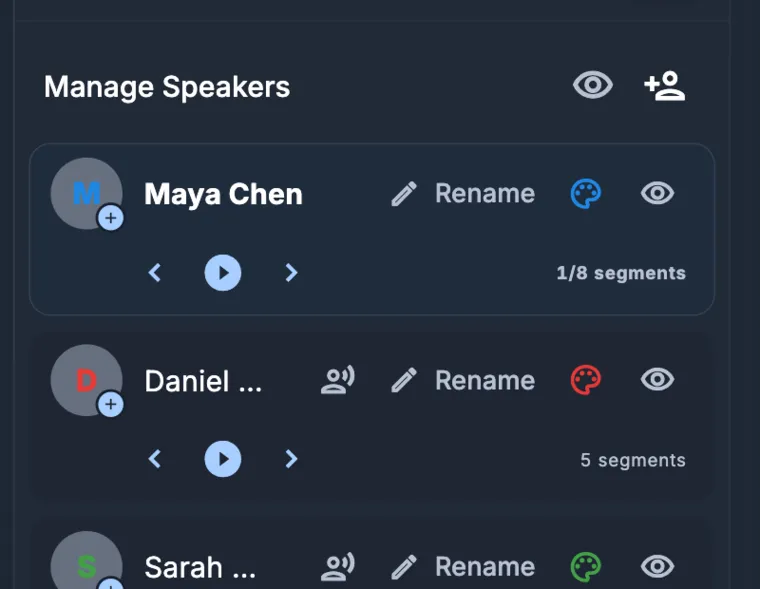
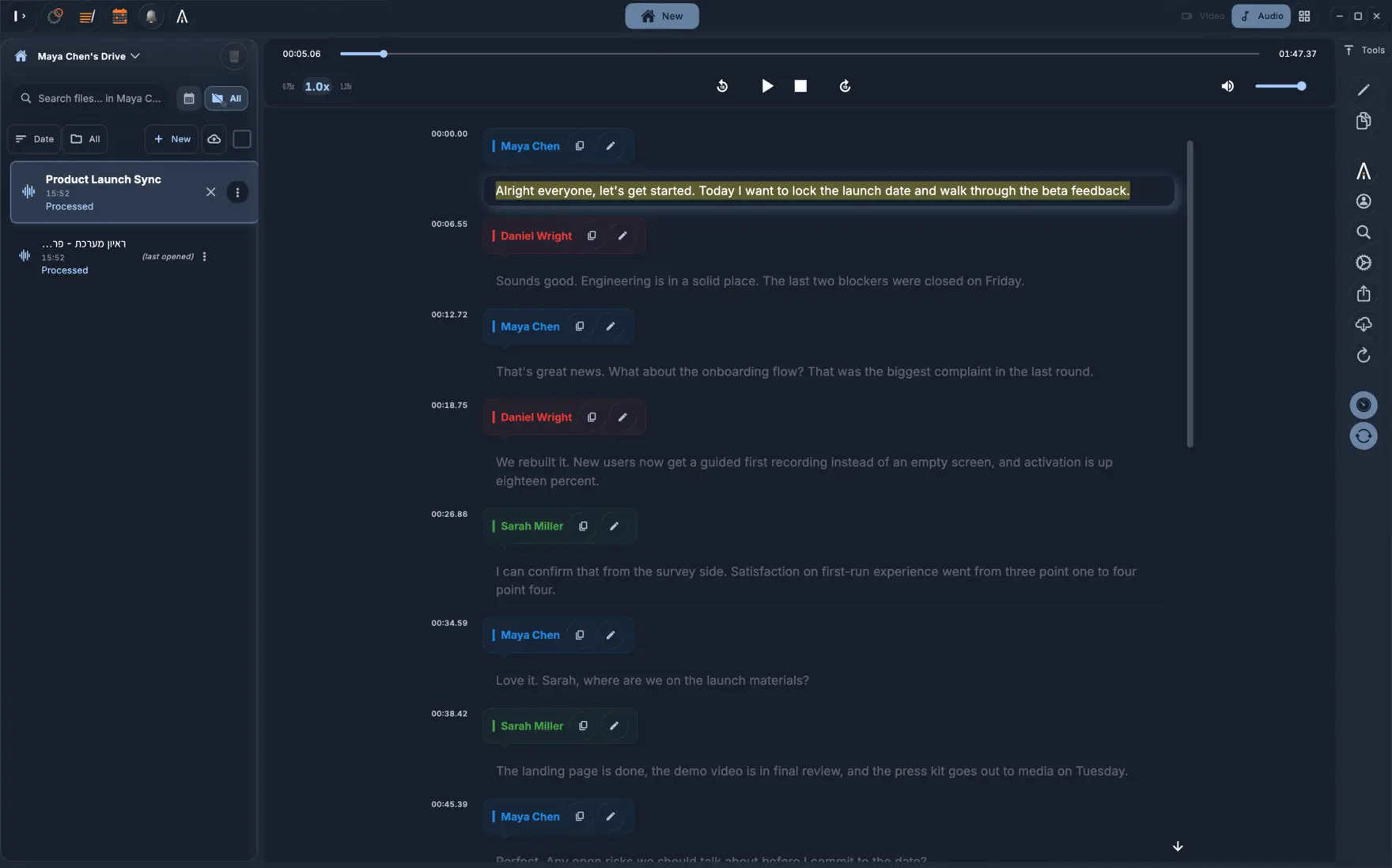
When you open a recording on the watch, you can listen to the audio, read along with the text, read silently, or ask for a summary. The app can highlight the text word by word or segment by segment as it plays, and tapping any timestamp jumps straight to that spot in the audio. If the cloud processor picks up different speakers, it labels them in the text.
If a transcript is longer than a few paragraphs, it is much easier to read on a Mac or in a web browser. A good routine is to record on the watch, check that the file uploaded, and then move to a bigger screen to check names, numbers, and quotes against the audio.
Is it accessible, and which languages are supported?
You can read transcripts on the watch without playing the audio, which helps Deaf and hard-of-hearing users or anyone who would rather read than listen. Every control has a VoiceOver label, the text adjusts to match your system font size, and the app supports both light and dark modes.
You can use the app interface in English, Hebrew, Arabic, Spanish, French, Russian, or German, and there is full right-to-left layout support for Hebrew and Arabic. The app follows the language you pick in its own settings, not the watch's system language. For cloud transcription, over 100 languages are supported.
What are the limits to keep in mind?
Watch Recorder does not do live captioning or transcribe audio in real time on your wrist. It never listens in the background on its own; a recording only starts when you press record. The app is only for Apple Watch right now, and there is no version for Android smartwatches yet.
Automated transcripts still make mistakes from time to time, especially with background noise or unfamiliar names and numbers. Always double-check any text you plan to rely on. Also, tell people before you record them. Recording laws depend on where you are and the situation, and some places, like exams or certain workplaces, ban recording completely.
Common questions
Do I need my iPhone nearby to record on the watch?
No. The watch app runs on its own and uploads audio over the watch's Wi-Fi or cellular connection.
Does the watch transcribe audio on the device?
No. The watch records and plays back audio. Your KolWrite account runs the transcription in the cloud, so you need a network connection, an active plan, and available credits.
Can I record without a network connection?
Yes, you can record completely offline. Once the watch is back on a network, it uploads the audio file for transcription.
Is the Apple Watch app available now?
Yes. You can get KolWrite Watch Recorder on the App Store for Apple Watch models running watchOS 10 or later. There is no version for Android watches yet.
Is the watch listening all the time?
No. It only records when you tap start. There is no background listening and no live captioning.