The short version
- Teams saves recordings to OneDrive or SharePoint, depending on the meeting type.
- Company policy and the meeting organizer's settings decide who can record and who can open the file.
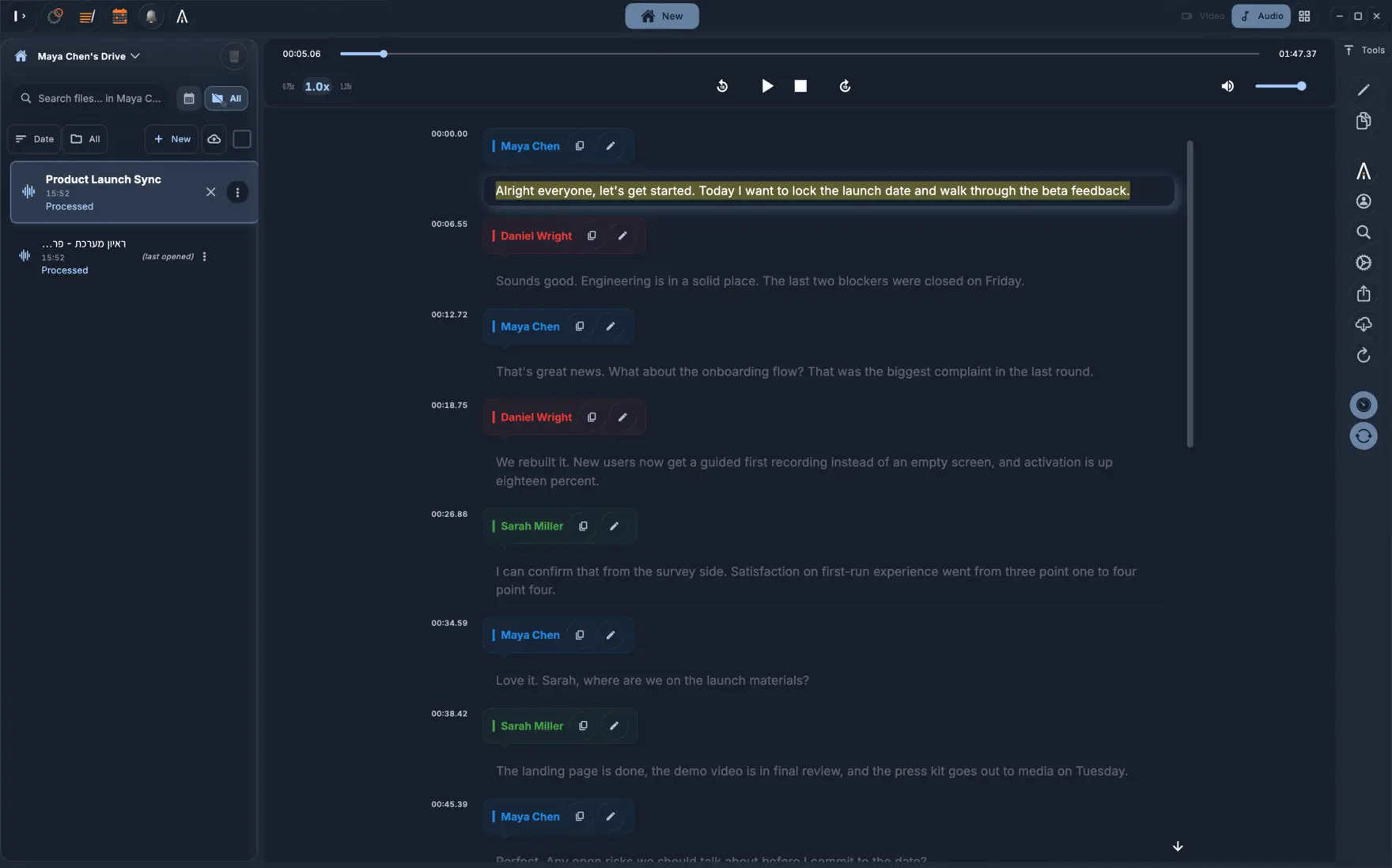
- Download the MP4 file and upload it to KolWrite. No bot joins the call, and no live captions run during the meeting.
- Companies can set recordings to expire automatically, so download important files right away.
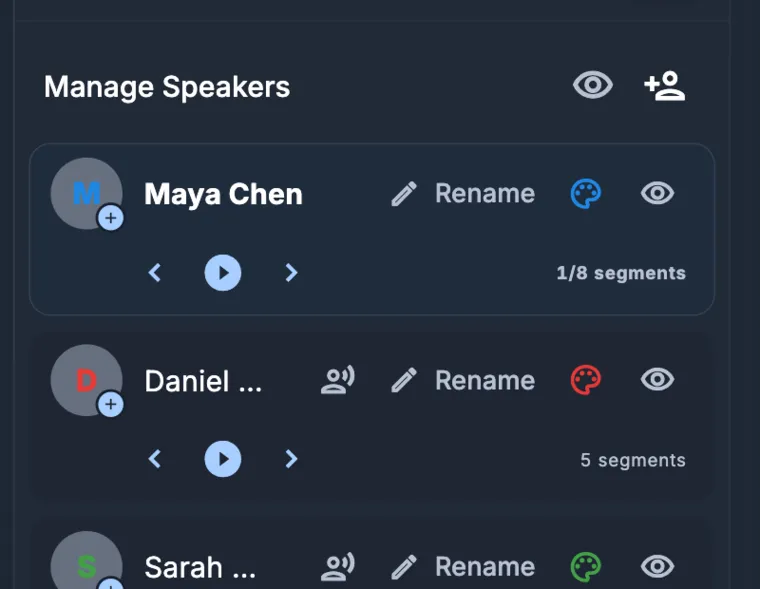
- Check speaker labels and names against the original audio before you share the transcript.
Who can record a Teams meeting?
Who can record depends on your company's policies and the organizer's settings. In many workplaces, authorized people from the same company can start a recording, while guests and outside participants cannot. As soon as recording starts, Teams puts a notice on screen for everyone on the call.
If the record button is missing, that is usually a company policy rather than a bug. Check with the meeting organizer or your IT admin. When people from outside your organization join the call, let them know at the start that you are recording. Recording laws depend on the country and situation, so ask your organization or a lawyer if you are not sure.
Where does Teams save the recording?
When the call ends, Teams processes the video and uploads it to Microsoft cloud storage. For a standard meeting, the file goes into the OneDrive account of the person who hit record. For a channel meeting, it lands in a Recordings folder on that team's SharePoint site. Once the file is ready, a link also shows up in the meeting chat or channel thread.
Processing takes a few minutes, and longer calls take longer. If you do not see the link, look in the meeting chat first, then check the organizer's OneDrive or search for the meeting title. Your organization's sharing rules control who can open the file, so you might have to request access to watch or download it.
How long do recordings stay, and why does it matter?
Many organizations set retention rules that automatically delete recordings after a set number of days. A file you count on could be gone a few weeks later. If a call matters, download the recording soon after it finishes and save a copy in a folder you control.
These retention rules also exist for privacy. Because recordings can hold personal or confidential details, only keep downloaded copies for as long as you need them, and delete the transcript once you are done.
What about meetings where some people share a room?
Hybrid meetings are the toughest to transcribe. When several people in a conference room share one microphone, the transcript may lump their voices together as a single speaker, and anyone sitting farthest from the mic may sound faint. Have everyone in the room speak clearly toward the microphone, give their name the first time they talk, and hold off on side conversations.
If the meeting is critical and several people are in the same room, have someone set a phone in the middle of the table to record a backup. You can upload both recordings and cross-check important parts. It also helps to read the final decisions out loud before ending the call so you have a clean reference point when reviewing the text.
How do you download the file and upload it to KolWrite?
Open the recording in OneDrive or SharePoint and pick download from the file menu. Teams gives you an MP4 video with the conversation in the audio track, and you can upload that file directly without converting it. Since video files can be large and take a while to upload, use a steady internet connection.
Open KolWrite in your browser, on a Mac, or on your phone, select the file, and start transcribing. KolWrite never sends a bot into your call or shows live captions. It handles Hebrew, Arabic, and over 100 other languages, and it can follow a conversation that switches between Hebrew and English within the same file.
What if the recording is missing or the file will not play?
Can't find the recording? Check the meeting chat first, since a link goes there automatically, and then look in the OneDrive of whoever started recording. Stopping and restarting the recording during a call can split it into several files.
If the MP4 will not play after downloading, download it again and wait for the transfer to finish completely. If the track is silent or barely audible, people may have been muted or had a bad connection during the meeting. You cannot fix bad source audio after the fact, so run a quick sound check at the start of your next call.
What should you check in a Teams transcript?
Start with the speaker labels. The transcript splits up different voices and puts a timestamp on each line, but if people talk over one another or share a room mic, a line can easily get assigned to the wrong person. Double-check every decision and commitment.
After that, verify names, numbers, dates, and technical terms against the audio, since automated tools do make mistakes. If your workplace also turns on the built-in Teams transcript, you can compare the two, though the audio recording remains the final word.
What can you do with the transcript?
Export the transcript as a DOCX or PDF file for meeting minutes, grab a TXT file to paste into an email or task manager, or download SRT or VTT files for video subtitles. From there, you can generate a summary, translate the text between supported languages, or ask the AI chat to pull out specific decisions and action items. Always check those answers against the full transcript.
Only send the finished document to people who actually need it, and mention that it came from a recording. For regular meetings, put the date in each file name so you can easily search old discussions later.
Common questions
Can KolWrite join my Teams meeting?
No. KolWrite does not send a bot into calls or provide live captions. You upload the recorded file once the meeting is over.
Where are Teams recordings stored?
Standard meeting recordings go to OneDrive, and channel meetings go to the team's SharePoint site. You'll also find a link in the meeting chat.
Why is there no Record button?
Your company's policies and the organizer's settings control who is allowed to record. Ask the meeting organizer or your IT admin.
Do Teams recordings expire?
Yes. Organizations can set recordings to delete automatically after a certain time. Download important files soon after the call.
Do I need to check the transcript?
Yes. Automated transcripts can get things wrong, so always check names, numbers, and decisions against the original recording.