
The short version
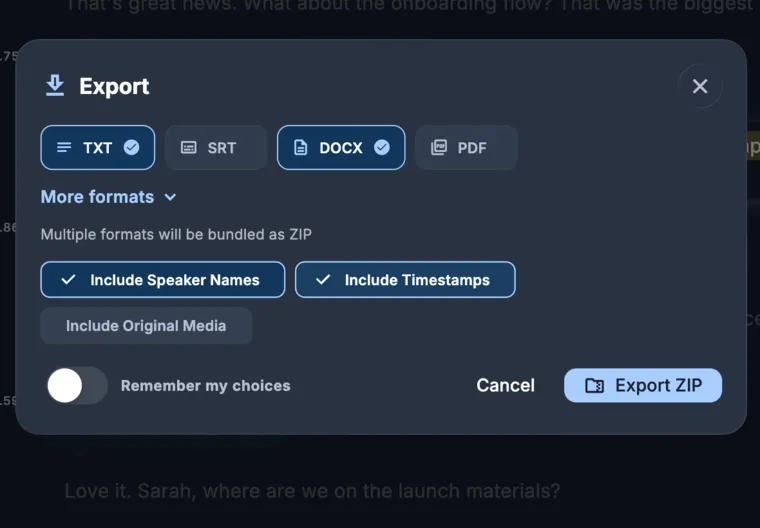
- You do not need a special integration. Just export the transcript from KolWrite as a DOCX or TXT file and open it in Google Docs.
- DOCX keeps your document structure, while TXT gives you plain text without any formatting surprises.
- If you are working in Hebrew or Arabic, check the paragraph direction and document language in Google Docs.
- Review the text with colleagues using comments and suggested edits, and keep the audio file handy to check anything that looks off.
- Be careful how you share the file, since transcripts can include personal or confidential information.
Why move a transcript into Google Docs?
Shared documents are where teams already work. When a transcript is in Google Docs, several people can leave comments at once, suggest edits for approval, and link to the file from a project page or task. Everyone views the same version, and the version history shows who changed what.
A good workflow is to correct the transcript in KolWrite first, where the audio sits right beside the text, and then move the reviewed text to Google Docs for final editing and sharing. If you move an unreviewed transcript, your colleagues will find errors one by one with no easy way to check them against the recording.
How do you export the transcript and open it in Docs?
Open your finished transcript in KolWrite and export it as a DOCX file. From there, upload it to Google Drive, select it, and open it with Google Docs. You can also open the file straight from your computer inside Google Docs. Either way, Docs converts the file into its own format as a new editable copy, leaving your original file untouched.
If you only care about the words and not the layout, export a TXT file instead and paste the text into a blank document. Plain text carries no styling that might get messed up during the transfer, which makes it the safest bet for long transcripts. Once the text is in, glance at the first page, a page in the middle, and the very end to make sure nothing got cut off.
How do you set right-to-left text in Google Docs?
Hebrew and Arabic need a right-to-left paragraph direction. When your text hugs the left margin, or punctuation lands on the wrong side of the sentence, highlight the paragraphs and click the right-to-left button in the toolbar or the Format menu. Don't see those buttons? Go to the File menu and set the document language to Hebrew or Arabic, which tells Docs to show the right-to-left options. Menu names can change, so look for the icon with a left-pointing arrow rather than hunting for an exact menu path.
Text that mixes scripts takes a bit more care. A Hebrew or Arabic sentence that includes a Latin name, a number, or a web address is actually running in two directions at once. Numbers still read left to right inside right-to-left text, and punctuation next to a Latin word will sometimes jump to the wrong side. When that happens, try retyping the end of the sentence or clicking the paragraph direction button again.
Make sure to set the proofing language too, so the spell checker uses the right dictionary instead of putting red squiggles under every word. If your document switches between languages, check it section by section.
How do you review a transcript with other people?
Share the document with the people who need it and give them the lowest permission level that works. Reviewers get comment-only access, while the person who owns the final text gets edit access. Have reviewers leave comments for questions and use suggestions for edits so you can accept or reject each change one by one. Adding a timestamp to a comment, such as a note to check at 12 minutes 40 seconds, helps the document owner find that exact spot in the audio.
Go back to the recording to settle disagreements instead of relying on memory. The document owner can listen to the audio at that timestamp, make a call, and close out the comment. Store the audio file and the original export in the same Drive folder as the document so you have a complete record.
How should you structure the document?
Use Google Docs' built-in heading styles so the side panel automatically builds a clickable outline. At the very top, add a short summary with the subject, date, attendees, and a quick note that the text was transcribed from a recording and reviewed. If you are turning the transcript into meeting minutes, break out decisions and action items into their own sections, and put an owner and a date next to each one.
Pick one style for speaker names and stick to it, like putting the name in bold followed by a colon. If the transcript has generic speaker labels, use Find and replace to swap in the real names. Then read through the first few minutes of the conversation to make sure the right words are attached to the right people.
What should you be careful about?
Automated transcripts have mistakes in them. Read the whole document from start to finish before you share it with anyone else, and check names, numbers, dates, and quotes against the audio. If people who were not at the meeting will read the document, state clearly that it was generated from a recording and has been reviewed.
A transcript can contain private or confidential statements. Check your sharing settings before you send out the link. Avoid turning on access for anyone with the link, and revoke access once the review is done. If your organization has policies on where recordings and transcripts may be stored, follow them.
Common questions
Can I export a KolWrite transcript directly to Google Docs?
Export your transcript as a DOCX or TXT file and open it in Google Docs. PDF, JSON, SRT, and VTT exports are also available.
Why does my Hebrew text look wrong in Google Docs?
The paragraph direction is probably set to left-to-right. Highlight the text, switch the direction to right-to-left, and check that the document language is set properly.
Should I use DOCX or TXT?
Use DOCX if you want to keep more of the document structure. Use TXT if you just want plain text with no unexpected formatting changes.
How do I review a transcript with a colleague?
Share the doc with comment or edit access and ask your colleagues to use suggested edits and comments. When a question comes up, use timestamps and the original audio to check what was said.
Do I need to check the text first?
Yes. Automated transcripts have mistakes, and it is much easier to fix them in KolWrite while the audio is sitting right next to the text.