
The short version
- You don't need to strip the audio out first. Upload the video file as is, and the transcript comes straight from its audio track.
- Check that the file has sound and clear speech before you upload it.
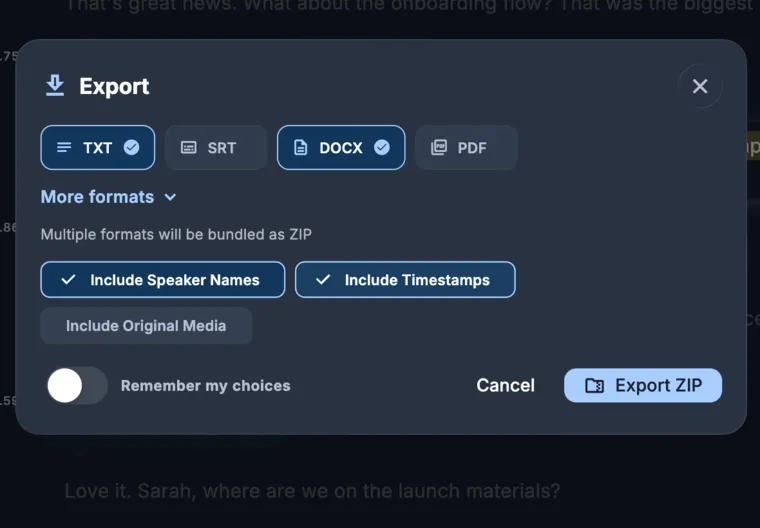
- You can export a timestamped transcript as an SRT or VTT file, or burn the captions directly into the video.
- Check names, numbers, and caption timing against the video before you publish.
- Hang on to your original video file. Your transcripts and subtitles are made from it, and you may want to create new versions later.
Which video files can you transcribe?
Common formats like MP4 and MOV work right away. Transcription pulls from the video's audio track, so any file from a phone, camera, screen recorder, meeting app, or editing program will work as long as it has sound.
If a file won't open or upload, export a standard MP4 copy from your editing program and try that. Some pro camera formats and special codecs need to be converted first, and a basic export usually solves it. Just keep your original file.
What should you check before you upload?
Listen to a minute of the video near the start, middle, and end. Make sure there is sound, every sentence is clear, and all speakers are at roughly the same volume. If you have trouble making out the words yourself, the transcription will too.
When your camera records several audio tracks, like an on-camera mic and a separate lapel mic, export the track where the speech is clearest. A close lapel mic produces a stronger transcript than a camera mic that is far away. Background music also gets in the way of speech recognition, so pick a mix with quieter music if you have one.
If people speak more than one language in the video, take note of where they switch. KolWrite transcribes over 100 languages and handles mixed Hebrew and English speech, though you should check any parts in a third language more carefully.
How do you upload and transcribe it?
Open KolWrite in your browser, on a Mac, or on your phone, add the video file, and start transcribing. Because video files are big, stay on a steady internet connection and leave the app open until the upload is done. On a phone, you can also send the video straight to KolWrite from your photo library or the Files app.
When the transcript finishes, check the speaker labels if more than one person is talking. For a single-speaker talk or lecture, one label is plenty. Each line in the transcript gets a timestamp, which is used to build the subtitles.
How do you review the transcript against the video?
Play the video and read the text alongside it. Start by checking names, numbers, product names, places, and technical terms. Automatic transcription gets those wrong most often, and viewers spot them right away. If a word is hard to hear, replay that timestamp and decide how to write it. Your review is what catches the errors automatic tools miss.
Only cut out filler words if you want a clean transcript for reading. If you are making subtitles, leave the exact words people said, since captions that don't match the audio are distracting for anyone listening. Text shown on screen, like title cards, won't show up in the transcript.
How do you turn the transcript into subtitles?
Once you've reviewed the transcript, export it as an SRT or VTT file. Both are plain-text formats that break the text into short captions with start and end times, and most video players, editing suites, and hosting platforms support them. SRT is the most widely accepted format, while VTT is common for web players.
Keep captions short, no more than a line or two, and leave them up long enough to read easily. If they move too fast or look cramped, change where the lines break in KolWrite and export the file again. For Hebrew and Arabic, test the subtitles in the actual video player you plan to use. How right-to-left punctuation and Latin words inside a line show up depends on the player.
When should you burn the captions into the video instead?
With a separate subtitle file, viewers can turn captions on or off. Burned-in captions are baked right into the video frames, so they stay on screen permanently. Use them anywhere separate subtitle files aren't supported, such as short vertical videos for social feeds, clips sent in messaging apps, or muted screens in public places.
KolWrite can burn captions straight into your video. Pick a visual style and watch the whole video through to make sure the placement looks right. Save your original uncaptioned file in case you need a clean copy or another language later. If the platform lets you, upload the separate SRT or VTT file too so people using assistive tools can access it.
Common questions
Do I need to extract the audio from my video first?
No. You can upload the MP4 or MOV file as it is, and the transcript will be made from its audio track.
How do I get an SRT file from a video?
Transcribe the video in KolWrite, look over the text, and export it as an SRT file (or VTT if that's what your player takes).
Can I burn the subtitles into the video?
Yes, KolWrite can burn captions right into the video frames. Just be sure to keep your original video file without captions.
Can I make subtitles in another language?
Yes. You can translate your reviewed transcript into any supported language and export a subtitle file for each one. Have a fluent speaker check the translation over.
Does it work for Hebrew and Arabic videos?
Yes, Hebrew and Arabic are fully supported, including right-to-left formatting for subtitles. Just preview the exported file in the video player you plan to use.