
The short version
- KolWrite only works with files you upload. It will not pull a video from a link.
- If the video is yours, upload the original file or download it from your channel's YouTube Studio.
- If the video belongs to someone else, get the owner's permission first and follow copyright law and the platform's terms.
- Export an SRT file, look it over, and upload it to YouTube as subtitles in the video's language.
- You can also translate the same transcript to create subtitles in other languages, checking each one before you publish.
Whose video can you transcribe?
You can transcribe your own videos, or videos you have permission to use. If you or your organization made it, go ahead. If it belongs to someone else, you can't just transcribe it because it is public. Copyright and platform terms cover audio the same way they cover video, and writing down someone's spoken words is still making a copy of them.
To quote a public video, keep the excerpt brief, credit the source like you would anywhere else, and follow the rules in your jurisdiction. When you need a full transcript of someone else's video, ask the owner. Many creators are willing to send you a file, and some may already have a transcript they can share. The steps below are for videos you are authorized to use.
Why add captions and a transcript to a video?
Captions let people follow your video when they can't hear the audio, when they are watching on a phone with the sound muted, or when reading a second language is easier for them than listening to it. Putting the spoken words into text also helps both viewers and search engines find the video and quote from it.
Having a transcript gives you a written record, too. You can check back on what was actually said, fix a claim later, or turn the recording into an article or newsletter. At a company, the transcript of a training video can double as a searchable reference doc for new hires.
Do you need the file, or is a link enough?
You need the actual file. KolWrite transcribes audio and video files you upload from your device, and it does not pull videos from links. That is by design, since having a link says nothing about whether you have permission to copy the video.
When the video is yours, the original file is probably still on your computer or inside your editing project. Use that one if you have it, since it hasn't been compressed a second time by YouTube. If the original is gone, download the video from your channel's YouTube Studio, which is built for this. Don't screen-record the video playing back; always use the downloaded file.
How do you create the transcript?
Open KolWrite in your browser, on a Mac, or on your phone, drop in the video file, and start the transcription. You can upload MP4 and MOV files as they are, and KolWrite will pull the audio track to make the transcript. It works in Hebrew, Arabic, and more than 100 other languages, and it can handle speakers switching between Hebrew and English in the same recording.
When there is more than one speaker, check that the speaker labels are right. Then read through the text while playing the video's audio and fix any names, numbers, brand names, or technical terms. Automatic transcription can make mistakes, especially with terms shown on screen, because it only hears how a word sounds and can't see how it is spelled.
How do you get a subtitle file for YouTube?
Once you have checked the text, export it as an SRT or VTT file. YouTube takes both. Either format breaks the transcript into short caption blocks with start and end times. Keep track of which language the file is in, since YouTube will ask you to pick it when you upload.
Before you upload the file, make sure each caption is short enough to read easily, stays within two lines on screen, and lines up with the audio. If a line lingers too long or flashes by too fast, tweak the timing in KolWrite and export a fresh copy.
With Hebrew and Arabic, preview the captions on the video before you publish. Right-to-left text depends on the video player to display punctuation and mixed Latin words properly, and it is much easier to spot a misplaced period in a preview than after the video is public.
How do you add the captions to your video on YouTube?
Go to YouTube Studio, pick your video, and open the subtitles section. Add the video's language, choose to upload a file, and select your SRT or VTT. YouTube will show the captions next to the video so you can check the timing, and you can hit publish once it looks good. YouTube renames its menus every so often, so if the label has changed, look for the subtitles area inside the video's details page.
That same transcript lets you create subtitles in other languages, too. Translate the reviewed text into the supported languages, export a separate file for each one, and upload each file under the matching language on YouTube. For an important video, ask someone fluent in that language to go over the translation first, since automatic translation can make mistakes too.
What else can you do with a video transcript?
With the full text in front of you, it is quick to write the video description and chapter markers, pull quotes for a social post or newsletter, find the exact minute a topic comes up, or rework the talk into an article. If you need captions baked right into the video track, say for a short vertical clip you are posting somewhere else, KolWrite can burn them into the video for you.
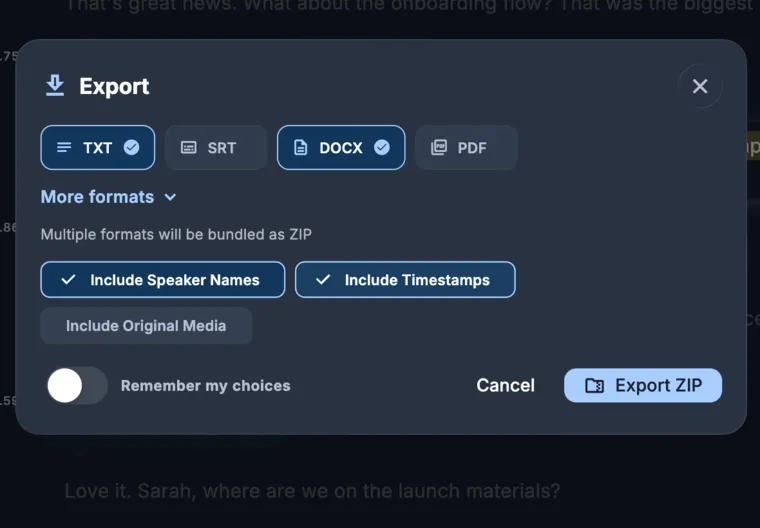
For working with the text itself, export as TXT or DOCX. Use JSON if you are feeding the transcript into software that needs word-level timestamps, or PDF if you want a fixed document. Keep the original video file and the checked transcript in the same folder so you can find or update either one later.
Common questions
Can I paste a YouTube link into KolWrite?
No, KolWrite only takes files you upload. If it is your own video, upload the original file or download a copy from your channel's YouTube Studio.
Can I transcribe someone else's YouTube video?
Only with the owner's permission, and only in line with copyright law and the platform's terms. Ask the owner to send you the video file.
How do I add subtitles to YouTube?
Export an SRT or VTT file from KolWrite, open your video in YouTube Studio, go to the subtitles section, and upload the file under the matching language.
Does it work for Hebrew and Arabic videos?
Yes. KolWrite supports more than 100 languages, including Hebrew and Arabic with right-to-left subtitle formatting.
Do I need to review the subtitles?
Yes. Automated transcription can contain errors, so always go through and check names, numbers, and specific terms before you publish.