
The short version
- Check and fix the transcript first. Editing the text in KolWrite is much easier while the audio plays right next to it.
- Choose DOCX if you need to edit the text, or PDF if you want a copy that stays as is.
- When working in Hebrew or Arabic, check both the paragraph direction and the proofing language in Word.
- Format headings with the built-in styles in Word and keep speaker names consistent throughout.
- Hold on to the original audio and transcript in case you need to double-check something later.
What should you do before exporting?
Do your editing in KolWrite first. Because you can play the audio from any line, checking a questionable name or number takes seconds. Once you move the text to Word, the audio link is gone. Any question you have later means scrubbing through the recording by hand.
Make sure the speaker labels are right, too. Word just sees them as regular text. Fix any mislabeled lines now, and decide whether to keep timestamps before you export. Timestamps help people jump to the exact spot in the recording when they are working with a draft, but you rarely need them in a final report.
How do you export a transcript as DOCX?
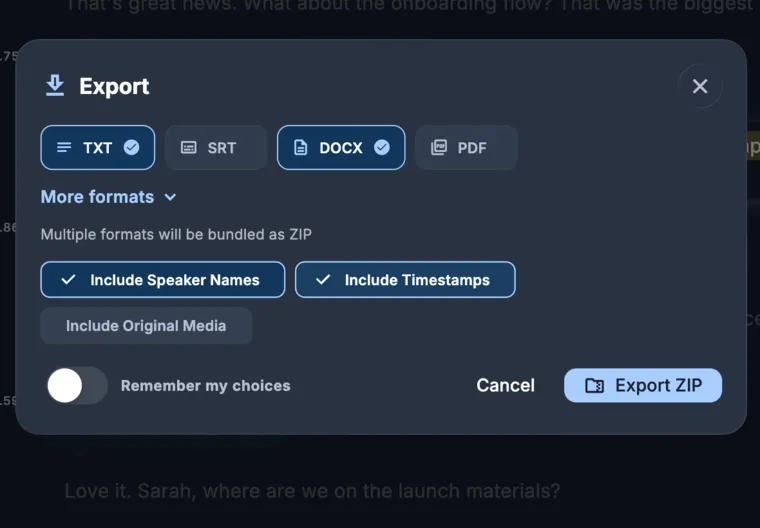
Open your finished transcript in KolWrite, click Export, and pick DOCX to save the file. If you also want a version nobody can edit by mistake, grab a PDF while you are there. You can also export as TXT for plain text you can paste anywhere, JSON if you need word-level timing for software, or SRT and VTT for subtitles.
Open the file in Word and look it over before you start editing. Check the first page, a page in the middle, and the last page. Make sure the language, text direction, speaker labels, and overall length look right. Catching structural problems early saves hours of formatting later.
How do you fix right-to-left Hebrew and Arabic in Word?
Word has to be told that a paragraph runs right to left. If your Hebrew or Arabic text is pushed to the left margin with periods and commas on the wrong end, select the text and click the Right-to-Left Text Direction button on the Home tab. You might also have to set the alignment to right. The exact button name and spot change a bit depending on your version and operating system, so look for the paragraph icon with a left-pointing arrow.
Most of the trouble happens when you mix languages. A Hebrew sentence that includes a number, a link, or a name in English combines two directions at once. Numbers always run left to right, even inside Hebrew text, and punctuation sticks to whatever direction is around it. If a period jumps to the wrong side of a word in Latin script, either retype the end of that sentence or apply the paragraph direction again.
Set the proofing language to Hebrew or Arabic so the spell checker stops putting red lines under every word. If your document uses more than one language, set it by section or paragraph. Then read the start and end of the longest paragraph to make sure everything stayed in place.
How do you give the document a clear structure?
Use Word's built-in heading styles instead of just making text bold and bigger. Real styles let you build a table of contents, jump around with the Navigation pane, and change the look of the whole document in one go. You can use agenda items as headings for meeting minutes, topics for an interview, or sections of a talk for a lecture.
Put a short block at the top of the first page with the subject, date, attendees, and a quick note that the document comes from a recording. If someone reviewed the transcript, add their name and the date they checked it. Months from now, that context tells the reader they can trust the file.
How should you format speaker names?
Pick one style for speaker names and stick to it, like putting the name in bold with a colon before what they said. If your transcript still has generic labels like speaker numbers, use Find and Replace in Word to swap each label for the person's real name all at once. Check that the match is exact, then read through the first few minutes of the conversation to be sure it worked.
When you are writing a report, you might summarize the discussion and back it up with direct quotes. Always quote the exact words, and listen to the audio for each quote before you publish. Do not change a quote except to cut filler words, and mark any spot where you shortened what they said.
What can the document look like for common jobs?
Keep meeting minutes short. List who was there, put all decisions in one list, add action items with an owner and a due date, and note any open questions. You can attach the full transcript at the end as an appendix, or keep it as a separate file and only send it if someone asks.
For an interview, a simple Q&A layout works well. Put the question in plain text and the answer under the speaker's name. For a lecture, drop topic headings into the transcript text to turn it into a study guide. Whatever you are making, work straight from your reviewed text and cut what you do not need instead of trying to rewrite it from memory.
What should you check before you share the document?
Automatic transcripts have mistakes, so read the whole document from start to finish with the audio open nearby to check anything you are unsure about. Double-check names, numbers, dates, amounts, and decisions. If you are sharing the document with people who were not at the meeting, add a note that it was generated from a recording and then reviewed.
Take out anything that should not be shared, such as irrelevant personal details, side conversations, and anything participants asked to keep off the record. Give the final file a clear name, keep the original recording, and store both with the same care as other confidential documents.
Common questions
Can I export a KolWrite transcript to Word?
Yes. Export the file as DOCX and open it in Word. You can also export to TXT, PDF, JSON, SRT, and VTT.
Why is my Hebrew text on the wrong side in Word?
The paragraph direction is set to run left to right. Select the text, click the Right-to-Left Text Direction button, and change the proofing language to Hebrew.
How do I replace Speaker 1 with a real name?
Use Find and Replace in Word to swap the generic label for the speaker's name, then read through the text to make sure every change is accurate.
Should I keep the timestamps in the document?
Keep them in working drafts so people can find the exact spot in the audio. Take them out for the final report if nobody needs them.
Do I need to proofread the document?
Yes. Automated transcripts make mistakes, so always check names, numbers, and quotes against the original audio.