
The short version
- Captions and transcripts open up audio and video to people who are deaf or hard of hearing, and they are useful to many others too.
- WCAG from the W3C is the international reference for web accessibility. In Israel, rules for websites and services are based on accessibility standards, and what you have to do depends on your organization and service.
- To be accessible, captions need to be accurate, timed to the audio, show who is speaking, and include meaningful sounds. Raw automated text is not enough.
- Software can give you a first draft, but a person has to check it, and a qualified professional should tell you which rules apply to you.
- Live events and recorded files are handled differently. KolWrite works with recordings and does not do live captioning.
Why do captions and transcripts matter for accessibility?
Without text, audio is unusable for people who are deaf or hard of hearing. Captions put a video's speech and meaningful sounds onto the screen as text, while a transcript gives the same content in a separate document. A transcript also works for people using a screen reader or a braille display, and for anyone who would rather read.45
Other people use them too. Captions help anyone watching with the sound off, in a noisy place, learning a language, or taking in written text more easily. Making content accessible generally makes it better for everyone.
What do the standards say, in general terms?
The international reference for accessible web content is the Web Content Accessibility Guidelines (WCAG), published by the W3C. WCAG requires captions for prerecorded video that has sound, and a text alternative like a transcript for audio-only files. It also sets conformance levels and covers live captions and audio description.123
In Israel, laws and regulations govern the accessibility of websites and services. These build on accessibility standards, including an Israeli Standard for web content based on WCAG. Which rules apply to you, which services they cover, and when they take effect all depend on your organization's type, size, and services. Because these rules change over time, we do not give a legal summary here. Check with the relevant authority or a qualified accessibility professional to see what applies to you.
What makes a caption accessible?
First, the words have to be exact, right down to names and numbers. The text also needs to stay in sync with the spoken audio. When it is not clear who is talking, the captions should name the speaker, and they should note sounds that affect the meaning, like laughter, a phone ringing, or music that sets the mood.4
They also have to be easy to read. Keep lines short, use high contrast, and leave text on screen long enough for a comfortable read. In Hebrew and Arabic, check that punctuation and any English words sit in the right place inside a right-to-left line. We cover the specifics in our guides to subtitle rules and right-to-left subtitles.
Is automatic text enough?
Automated text is a good starting point, though it is rarely ready to publish as a caption. It often gets names, numbers, and specialized terms wrong. It may also miss a change of speaker, and it will not include non-speech sounds unless you type them in. If you publish automated captions without checking them, you can leave out the very people who need them.
Think of automated output as a draft you need to check against the audio. KolWrite gives you transcripts with speaker labels and timestamps so a reviewer can click straight to any part that looks off. KolWrite makes no claim that its output meets any legal standard, and the publisher is responsible for the final text.
A simple review routine makes this easier. First, play the video with the sound on so you can match the captions to what you hear. Then play it again with the sound off to make sure the captions tell the full story by themselves. Before publishing, check the names, numbers, speaker changes, sound descriptions, line length, and timing.
What is a practical workflow for accessible video?
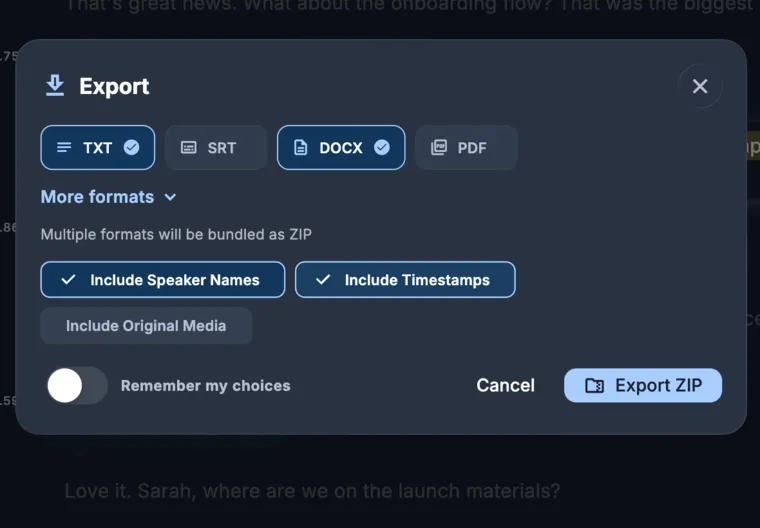
Start by transcribing the recording, then read through to fix mistakes and add speaker names and descriptions of important sounds before you export. For the video, supply an SRT or VTT caption file, or burn the captions in where a separate file cannot be used. Alongside the video, publish the transcript as a text document such as a DOCX or PDF file.
If the video needs to be translated, use that reviewed transcript to make a separate subtitle file for each language. When content needs audio description or sign language, bring in specialists, since those are separate services.
What about live events, and when should you ask a professional?
Meetings, lectures, and broadcasts need a dedicated live captioning service, run either by human captioners or by a real-time system. KolWrite works from uploaded recordings. It does not send a bot into a call and does not do live captions. Once the event is over, you can transcribe the recording to publish accessible captions and a transcript.
Accessibility is partly a technical matter and partly a legal one. A qualified accessibility consultant can audit your site, tell you which requirements apply to your organization, and check your captions. This guide is general information, not legal advice.
Common questions
Do I need captions on my videos in Israel?
That depends on your organization, the service you provide, and the current regulations. Check with the relevant authority or a qualified accessibility professional to find out what applies to you. Either way, adding captions is good practice.
What is the difference between captions and a transcript?
Captions show up on screen in time with the video. A transcript is a separate text document with the spoken words and, ideally, important sounds. Accessible media often includes both.
Can I publish automatic captions as they are?
It is better not to, because automated text has mistakes. Listen back to check names, numbers, and terms against the audio, and add speaker names and meaningful sounds.
Does KolWrite make my content compliant?
KolWrite creates transcripts and caption files that you then review. It does not claim compliance with any standard, and the publisher remains responsible for the final text and for meeting legal requirements.
Can KolWrite caption a live event?
No. KolWrite only works from recordings and does not offer live captions. You can transcribe the recording after the event.
Sources and further reading
- 1W3C, Web Content Accessibility Guidelines (WCAG) 2.2
- 2W3C, Understanding Success Criterion 1.2.2: Captions (Prerecorded)
- 3W3C, Understanding Success Criterion 1.2.1: Audio-only and Video-only (Prerecorded)
- 4W3C Web Accessibility Initiative, Captions/Subtitles
- 5W3C Web Accessibility Initiative, Transcripts